
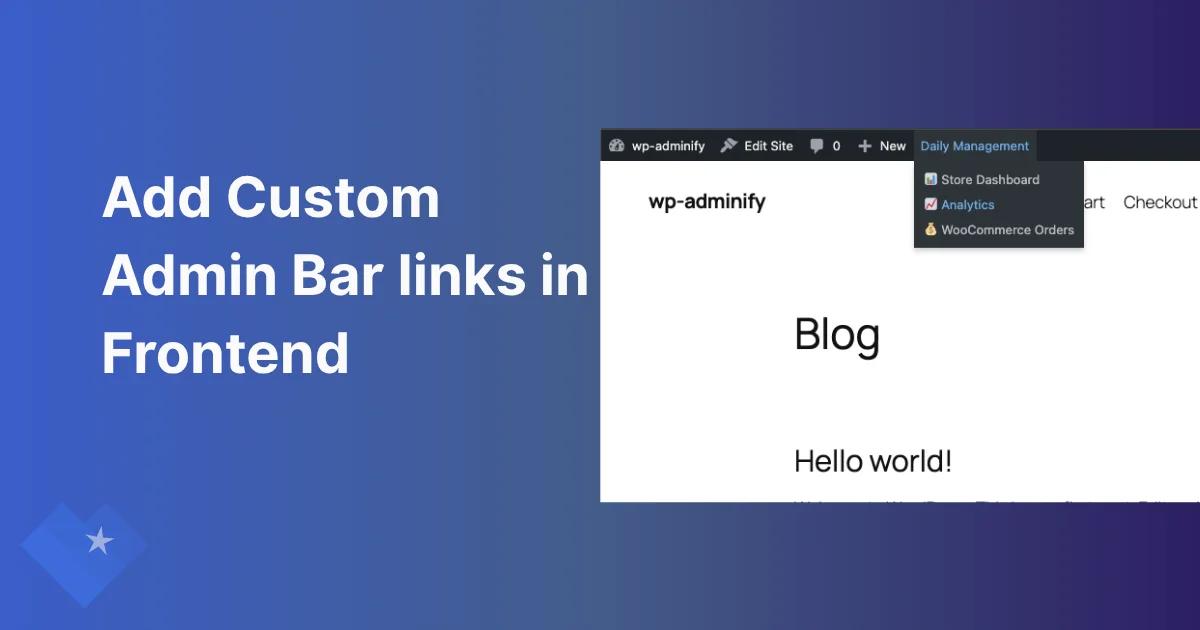

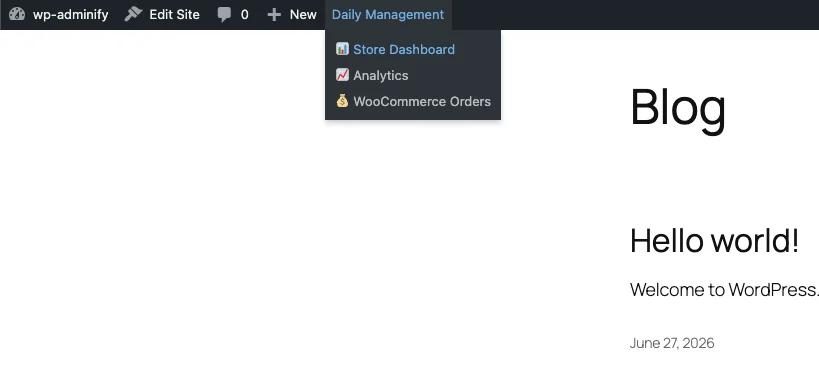
Log in to almost any WordPress site and a dark bar sits across the top of every page you visit. That strip is the admin bar, and out of the box it shows everyone the same handful of links: the WordPress logo, a site name, an "Edit Site" button, a comments bubble, and a "+ New" dropdown.
Handy, sure, but rarely the shortcuts you open ten times a day. You can change that. You can customize the WordPress admin bar so it shows what your team actually uses, drop the items nobody clicks, and strip the WordPress branding while you're at it. This guide covers two ways to do it, the code route and a no-code route.
What is the WordPress admin bar?
The WordPress admin bar (also called the toolbar) is the horizontal menu WordPress shows at the top of the screen for logged-in users, both inside the dashboard and on the live frontend. It holds quick links to common actions: visiting the dashboard, creating new content, editing the current page, viewing comments.
Under the hood, the bar is built by the WP_Admin_Bar class and assembled through the admin_bar_menu action. Each link is a "node" with an ID, a title, and a URL, and nodes nest inside each other to form dropdowns. Since every node is registered through hooks, the whole thing is editable. You can add nodes, remove them, rename them, or hide the bar completely. That's the part worth knowing, because it means you're never stuck with the defaults.
Why customize the frontend admin bar?
The frontend toolbar is some of the most-seen pixels on your site, and most installs waste it. A few reasons to take it over:
- Faster workflows. Swap links you never touch for the three or four pages your team opens constantly: a store dashboard, analytics, a support queue.
- Cleaner client sites. When you hand a site to a client, they don't need the WordPress logo and its "WordPress.org / Documentation / Support Forums" submenu staring back at them.
- Less wrapping on small screens. A trimmed toolbar stops items from spilling onto a second row on laptops and tablets.
- Role-appropriate access. An editor and a shop manager don't need the same shortcuts, so show each person only what's useful to them.
Customizing the toolbar turns a generic strip of WordPress links into a navigation bar built around how the site really gets used. Below are two ways to do it: a code method for developers, and a no-code method using the Admin Bar Editor built into WP Adminify.
Method 1: customize the admin bar with code
If you're fine editing functions.php (or, better, a small custom plugin or a code snippets manager), every change in this article can be done by hand. WordPress exposes the toolbar through hooks, so you never touch core files. This is the route I'd pick when changes need to live in version control, or when you're building something that ships to a lot of sites.
Add a custom menu with submenu links
To add your own top-level menu with a dropdown, hook into admin_bar_menu, register a parent node, then add child nodes that point back at the parent's ID. The example below rebuilds a "Daily Management" menu with three WooCommerce shortcuts:
1
2add_action( 'admin_bar_menu', 'mysite_frontend_toolbar_links', 100 );
3function mysite_frontend_toolbar_links( $wp_admin_bar ) {
4
5    // Top-level (parent) node
6    $wp_admin_bar->add_node( array(
7        'id'    => 'daily-management',
8        'title' => 'Daily Management',
9        'href'  => '#',
10    ) );
11
12    // Submenu items - each references the parent ID
13    $wp_admin_bar->add_node( array(
14        'parent' => 'daily-management',
15        'id'     => 'store-dashboard',
16        'title'  => 'Store Dashboard',
17        'href'   => admin_url( 'admin.php?page=wc-admin' ),
18    ) );
19
20    $wp_admin_bar->add_node( array(
21        'parent' => 'daily-management',
22        'id'     => 'wc-analytics',
23        'title'  => 'Analytics',
24        'href'   => admin_url( 'admin.php?page=wc-admin&path=/analytics/overview' ),
25    ) );
26
27    $wp_admin_bar->add_node( array(
28        'parent' => 'daily-management',
29        'id'     => 'wc-orders',
30        'title'  => 'WooCommerce Orders',
31        'href'   => admin_url( 'edit.php?post_type=shop_order' ),
32    ) );
33}
34
The add_node() method is documented in the WordPress developer reference. Priority 100 makes your menu load after WordPress registers its own nodes.
Hide the WordPress logo and unwanted items
Removing items uses the mirror method, remove_node(), with the node's ID. The WordPress logo lives under the ID wp-logo, the comments bubble is comments, and the "+ New" menu is new-content:
1
2add_action( 'admin_bar_menu', 'mysite_remove_toolbar_nodes', 999 );
3function mysite_remove_toolbar_nodes( $wp_admin_bar ) {
4    $wp_admin_bar->remove_node( 'wp-logo' );     // WordPress logo + its submenu
5    $wp_admin_bar->remove_node( 'comments' );    // Comments bubble
6    $wp_admin_bar->remove_node( 'new-content' ); // + New dropdown
7}
8
Disable the frontend admin bar entirely
If you'd rather the bar never show on the frontend, the show_admin_bar filter handles it. Return false for everyone, or scope it so administrators keep the bar while everyone else loses it:
1
2// Hide the frontend admin bar for non-administrators only
3add_action( 'after_setup_theme', function () {
4    if ( ! current_user_can( 'manage_options' ) ) {
5        show_admin_bar( false );
6    }
7} );
8
The show_admin_bar() function only touches the frontend; the dashboard toolbar stays put. The code route works fine, but it has a cost. You have to know each node ID, every tweak is a deploy, and the non-developers on your team can't change anything. That's the gap the next method fills.
Method 2: customize the admin bar with no code (Admin Bar Editor)
The Admin Bar Editor gives you a drag-and-drop screen for everything we just did in PHP: add menus, hide items, reorder the bar, switch it off per context, no code. It ships as a built-in module of WP Adminify, so if you already run Adminify for dashboard and menu work, the toolbar editor is sitting right there. Here's the full walkthrough.
Step 1: open the Adminbar Editor
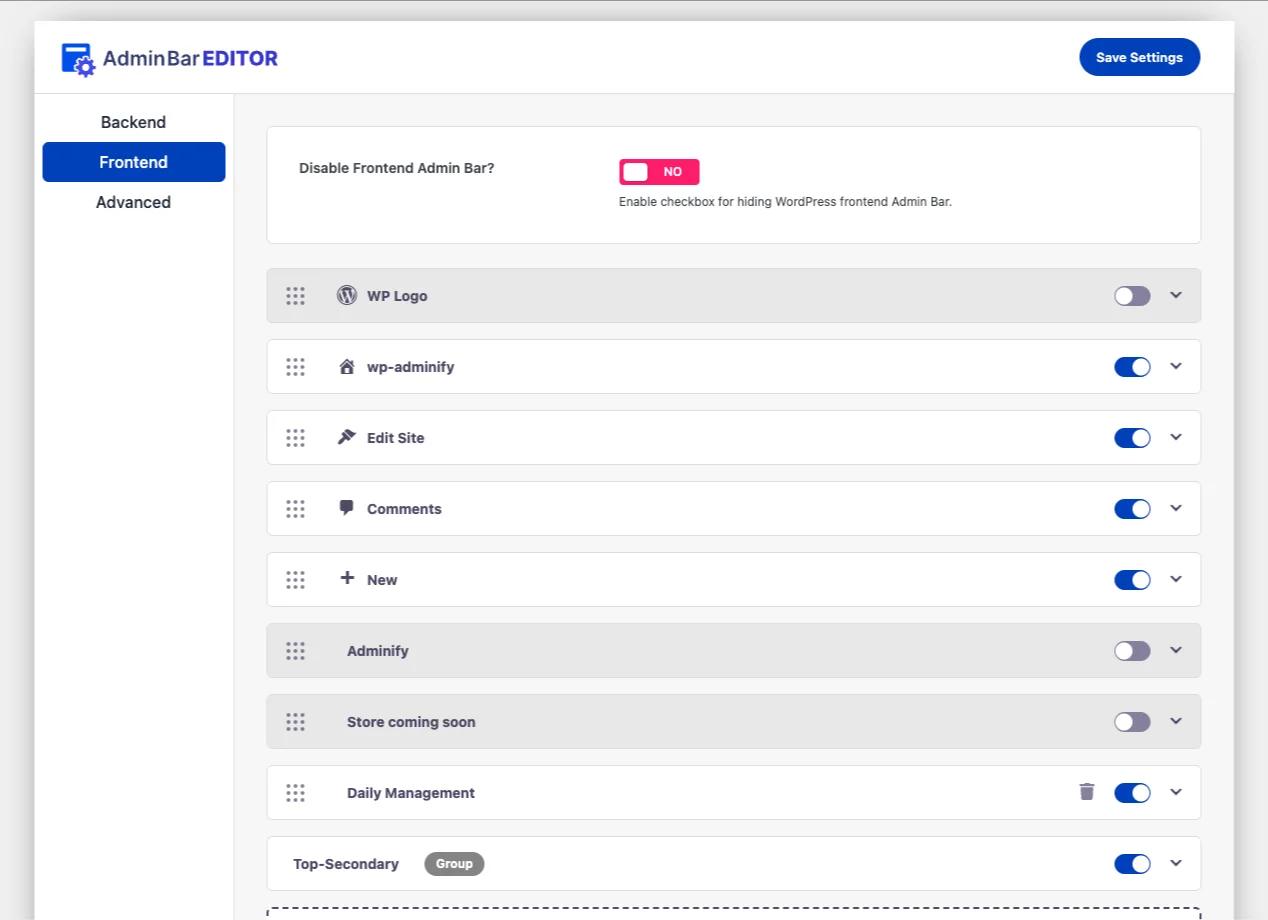
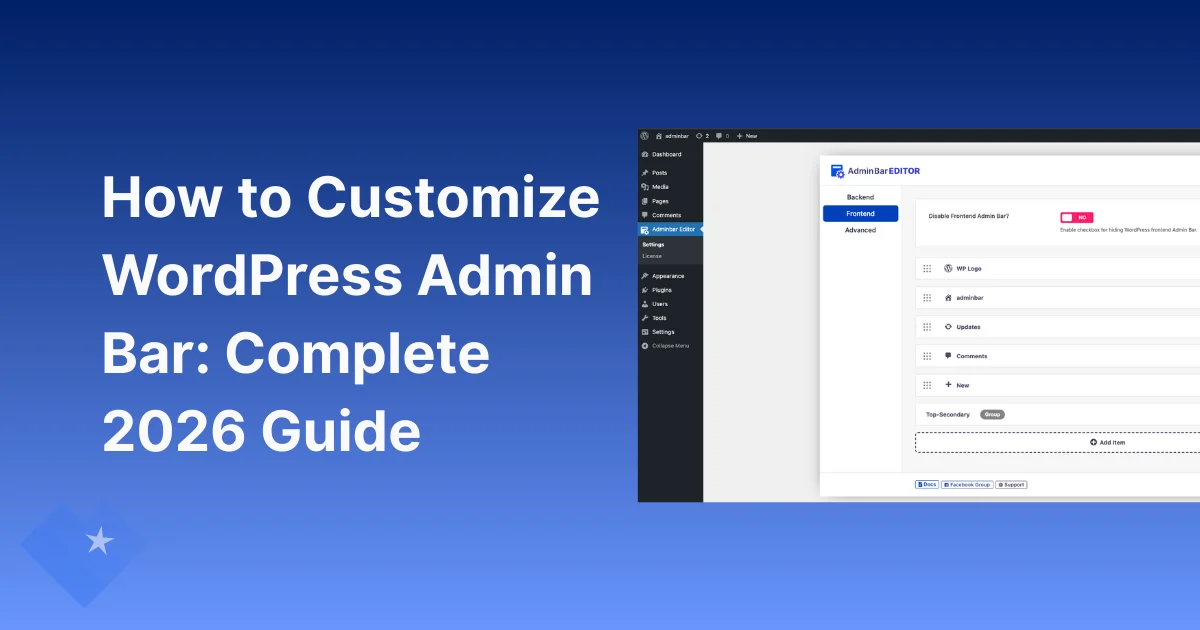
From the dashboard, go to Adminify → Adminbar Editor. It opens with three tabs: Backend, Frontend, and Advanced. We're changing what logged-in visitors see on the live site, so click the Frontend tab. Everything on this tab affects only the frontend toolbar and leaves your dashboard bar alone.
Step 2: hide the WordPress logo and trim unwanted items
The Frontend tab lists every node currently in the toolbar, each with its own on/off toggle. To hide the WordPress logo, flip the toggle next to WP Logo to off. That one switch removes the logo and its "WordPress.org / Documentation / Support" submenu, no remove_node() needed. Do the same for anything your team ignores: Comments, "+ New", "Edit Site". Whatever you leave on stays in the bar.
At the top of the same tab you'll see Disable Frontend Admin Bar? Leave it on No while you build a custom toolbar. If you ever want the frontend bar gone completely, switch it to Yes and save. That's the no-code version of the show_admin_bar filter from Method 1.
Step 3: add a custom menu
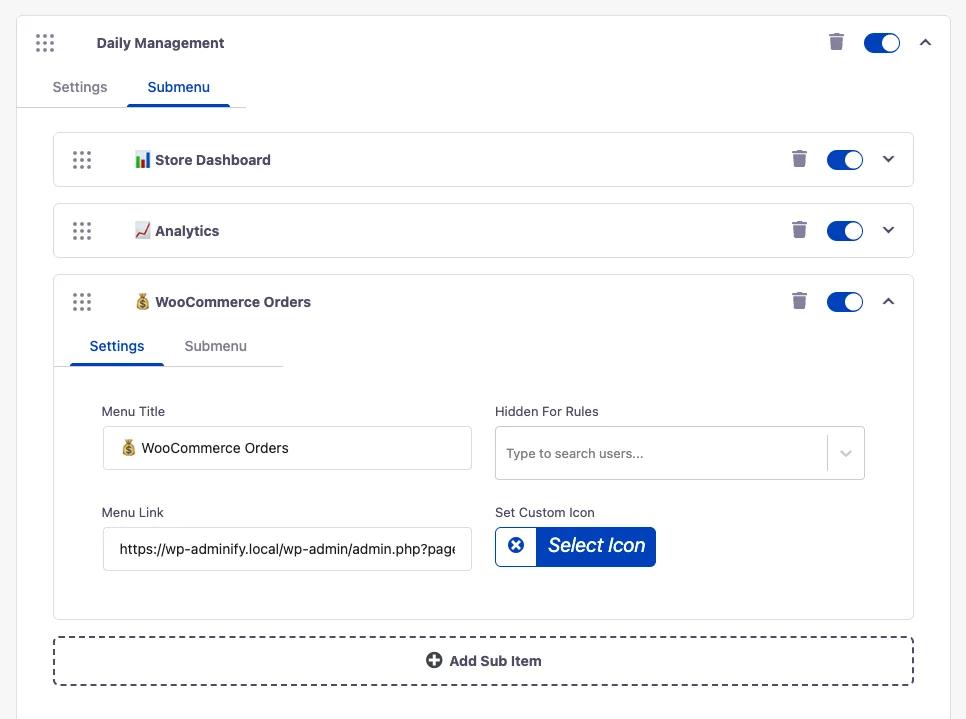
Scroll past the item list and click Add Item. A new Custom Menu block appears with a Settings tab. Fill in the fields:
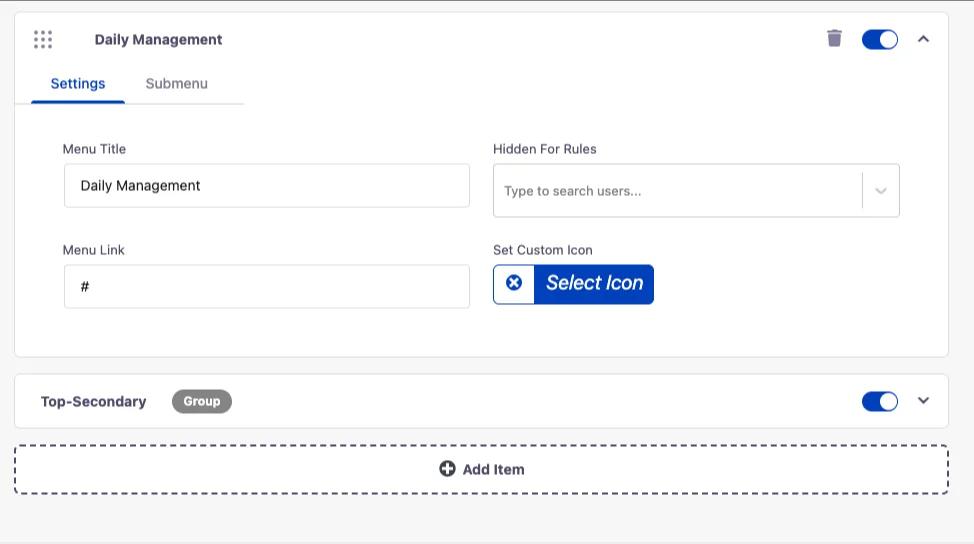
- Menu Title - the label shown in the bar, e.g. Daily Management.
- Menu Link - where the top-level label points. Use
#if it's only a container for a dropdown. - Set Custom Icon - optional Dashicon or uploaded icon next to the title.
- Hidden For Rules - optionally hide this menu from specific users (a Pro targeting option).
Step 4: add submenu items
A top-level menu earns its keep once you nest shortcuts under it. Switch to the Submenu tab of your custom menu and click Add Sub Item for each link you want in the dropdown. Set its Menu Title, paste the destination into Menu Link (say, the WooCommerce admin URL), and pick an icon. In the demo, "Daily Management" groups three shortcuts: Store Dashboard, Analytics, and WooCommerce Orders. Drag the dotted handle on the left of any item to reorder it, then click Save Settings. Same parent/child structure as the PHP in Method 1, built by clicking instead of typing.
Step 5: check the result on the frontend
Open any page on your live site while logged in. The WordPress logo is gone, the clutter you toggled off is gone, and your new Daily Management menu sits in the toolbar. Hover it and the dropdown shows the three shortcuts you added, each one click away from anywhere on the site.
Code vs. no-code: which should you use?
Both methods produce the same toolbar. What differs is who maintains it and how. This table sums it up:
| Consideration | Code (functions.php / snippet) | Admin Bar Editor (no code) |
|---|---|---|
| Add custom menu & submenu | Yes - add_node() per item | Yes - Add Item / Add Sub Item |
| Hide WordPress logo | Yes - remove_node('wp-logo') | Yes - single toggle |
| Reorder items | Manual node priorities | Drag and drop |
| Disable frontend bar | Yes - show_admin_bar filter | Yes - one switch |
| Role / user targeting | Custom conditionals | Built-in "Hidden For Rules" (Pro) |
| Who can manage it | Developers only | Anyone with dashboard access |
| Survives theme switches | Only if in a plugin/snippet | Yes - stored in the database |
My rule of thumb: use code when the changes belong in version control or ship across many sites, and use the editor when non-developers need to adjust the bar or you just want it done in two minutes.
Best practices for a useful toolbar
- Keep it to one custom menu. Group related shortcuts under a single labelled dropdown instead of scattering five top-level links that overflow on smaller screens.
- Name links by task, not by plugin. "Orders" beats "WooCommerce → Orders". The bar is for speed, so labels should read like the words your team already says out loud.
- Match access to role. If a shop manager and an author share the site, hide irrelevant menus per role so each person sees only what they can act on. WP Adminify can also hide the admin bar based on user roles entirely.
- Don't strip the bar from admins by accident. If you disable the frontend bar, make sure you (or another admin) still have a fast way back into the dashboard.
- Go easy on icons. One recognizable icon per item helps scanning; an icon on every node just turns the dropdown into noise.
Common issues and fixes
My custom menu doesn't show up. Check that you added it under the Frontend tab (not Backend) and that its master toggle is on. With code, set your admin_bar_menu priority high enough (around 100) that nodes register after WordPress builds the bar.
The whole bar vanished. The "Disable Frontend Admin Bar?" switch is probably on Yes, or a show_admin_bar filter is returning false. Turn the bar back on, then hide individual items instead.
I hid the WordPress logo but it came back after an update. If you removed it with a snippet that got overwritten, move the code into a dedicated plugin, or use the editor, which saves settings to the database and keeps them through plugin and core updates.
The bar wraps to two rows. Too many top-level items. Fold them into one dropdown and switch off whatever's unused, and the overflow goes away.
Frequently asked questions
How do I customize the WordPress admin bar without coding?
Install a toolbar editor like the Admin Bar Editor (included in WP Adminify), open Adminify → Adminbar Editor → Frontend, and use the toggles to hide items, the "Add Item" button to build custom menus, and drag-and-drop to reorder. No PHP or theme edits, and the changes save to your database.
Can I add a custom link to the WordPress toolbar?
Yes. In code, use $wp_admin_bar->add_node() with an id, title, and href. No-code, click Add Item in the Adminbar Editor, enter a Menu Title and Menu Link, and save. Nest links into a dropdown by adding sub items under a parent menu.
How do I remove the WordPress logo from the admin bar?
To remove the WordPress logo, either call remove_node('wp-logo') on the admin_bar_menu hook, or toggle WP Logo off on the Frontend tab of the Admin Bar Editor. Both drop the logo and its WordPress.org submenu. Pulling default branding is also part of a wider white-label setup.
How do I disable the admin bar on the frontend only?
Add add_filter('show_admin_bar', '__return_false') to switch it off for everyone, or wrap show_admin_bar(false) in a role check to keep it for admins. In the Admin Bar Editor, set Disable Frontend Admin Bar? to Yes. The dashboard toolbar isn't affected either way.
Will toolbar changes affect the dashboard admin bar too?
No, as long as you make them on the Frontend tab. The Admin Bar Editor keeps Backend and Frontend settings separate, so you can run a clean, branded toolbar on the live site and still have the full toolbar inside wp-admin. In code, the show_admin_bar filter targets only the frontend by design.
Conclusion
A customized toolbar is one of the cheapest wins you can hand a WordPress site. Quick recap:
- The admin bar is fully editable through the
admin_bar_menuaction, so you can add, remove, or hide any node. - Code gives you version-controlled, portable changes. The no-code Admin Bar Editor hands anyone on your team the same control in minutes.
- Group your team's real shortcuts under one custom menu, hide the WordPress logo and clutter, and scope visibility by role.
If you'd rather skip the PHP and manage the toolbar visually, alongside dashboard, menu, and login customization in one place, try the Admin Bar Editor in WP Adminify and shape the frontend bar around how your site actually gets used.

Your email address will not be published