

Hiding the WordPress admin bar for specific roles or users is one of the fastest ways to clean up your dashboard and keep non-technical users focused on what actually matters. Whether you're running an agency, multisite network, or membership site, a bloated admin bar creates confusion and unnecessary distractions.
In this guide, you'll learn how to hide individual admin bar items based on user role or username - without writing a single line of code. We'll also show you how to leverage Admin Bar Editor Pro to create custom admin bar links with role-based visibility, perfect for agencies and teams.
What You'll Learn
- How to hide specific admin bar items for individual user roles or usernames
- How to completely remove the admin bar from the frontend for selected users
- How to add custom admin bar links and control who sees them (Pro feature)
- Best practices for creating a role-based admin experience
Why Hide the Admin Bar for Specific Roles or Users?
The default WordPress admin bar shows far too much information for most users. On a typical site, you'll find links to post types you can't edit, dashboard pages you don't need, and settings you shouldn't access. This leads to:
- Unnecessary distractions on membership, LMS, and community sites
- Confusing experiences on storefronts where WooCommerce customers see backend-style links
- More support requests when non-technical users accidentally click unfamiliar icons
- Security concerns when low-permission users see parts of the interface they shouldn't
By hiding the admin bar -or only certain items - for selected roles or usernames, you keep the interface clean while still giving admins and power users full access. This is especially critical if you're managing multiple client sites in a multisite network or running custom user role configurations.
Step 1: Install and Activate Admin Bar Editor
Admin Bar Editor is a free plugin from Jewel Theme that gives you a visual interface to control which admin bar items appear and who can see them - without any coding.
- Log in to your WordPress dashboard
- Navigate to Plugins → Add New
- Search for "Admin Bar Editor"
- Click Install Now and then Activate
- You'll see Adminbar Editor appear in your WordPress sidebar under Settings
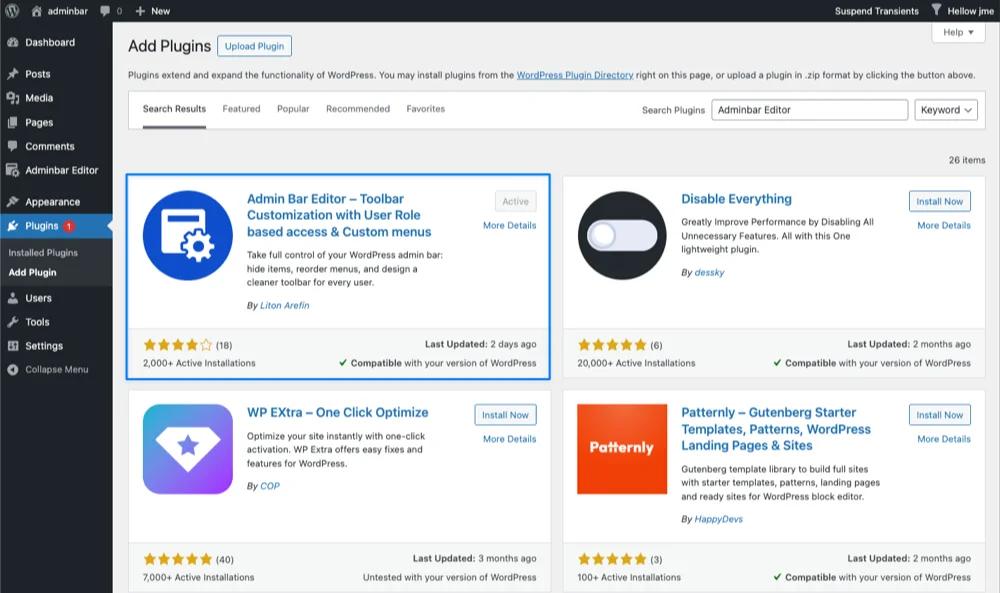
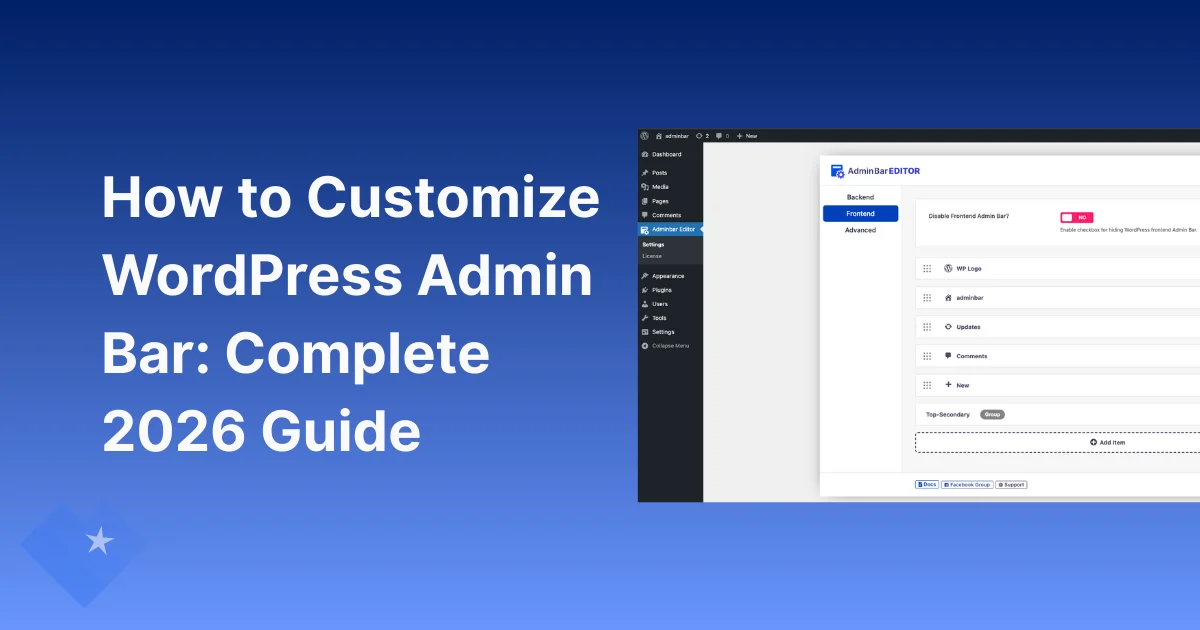
Once activated, open the plugin by clicking Adminbar Editor in the left menu. You'll see three main tabs:
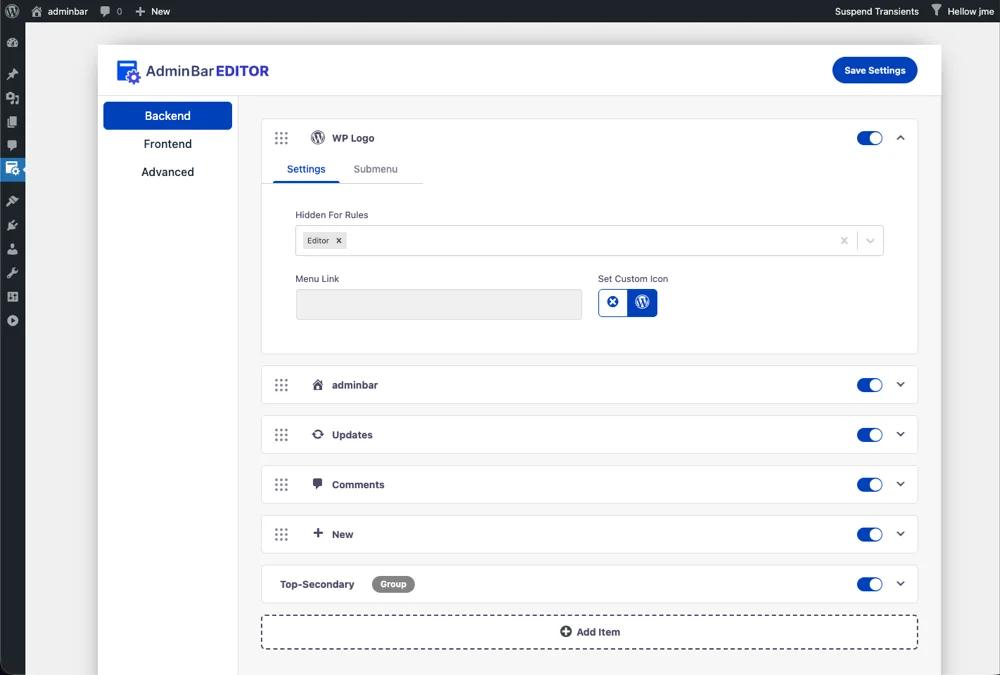
- Backend – Controls the toolbar inside
/wp-admin/(the WordPress dashboard) - Frontend – Controls the toolbar on the public-facing side of your website
- Advanced – Houses additional options and Pro features
If you're new to customizing the admin bar altogether, check out the complete guide on how to customize WordPress admin bar for more context on all available options.
Step 2: Choose Your Context (Backend vs. Frontend)
Before you start hiding items, decide where you want the changes to take effect:
Backend Context: Use the Backend tab when you want to simplify the admin bar inside the WordPress dashboard for certain roles. For example, you might hide the "Updates" item from Editors or the "Comments" icon from Authors.
Frontend Context: Use the Frontend tab when you only want to affect the toolbar on the live website. This is perfect for customer-facing sites, membership platforms, or LMS websites where you want subscribers to have a minimal toolbar or no toolbar at all.
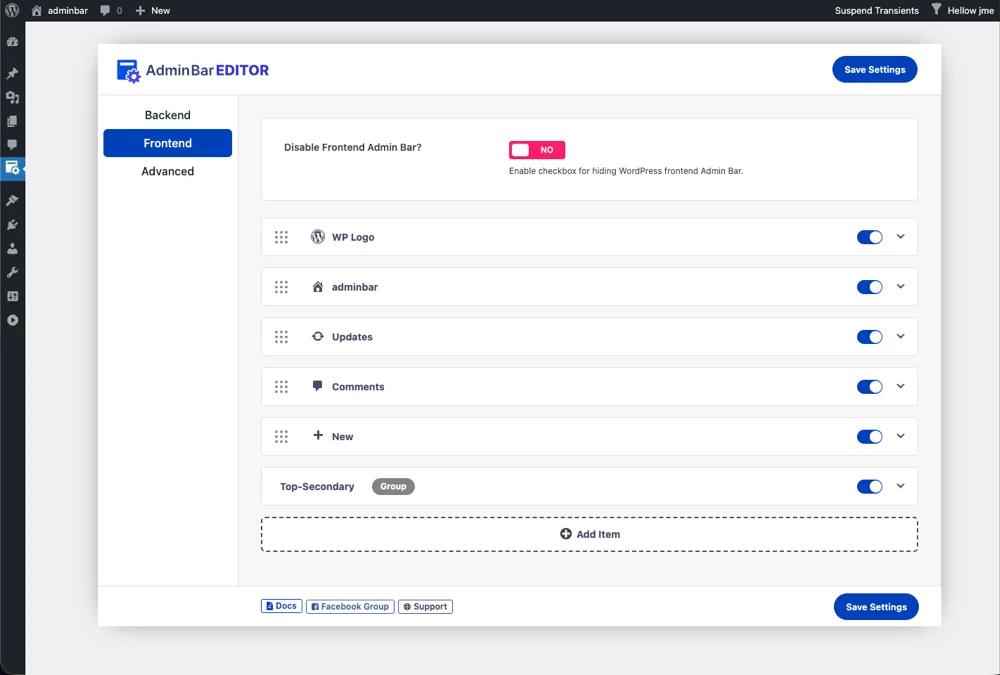
The choice depends on your site's purpose and user structure. For most cases, controlling the frontend admin bar is more important than the backend.
Step 3: Hide Specific Admin Bar Items for Selected User Roles
Now let's dig into the practical steps of hiding individual items for specific roles or usernames.
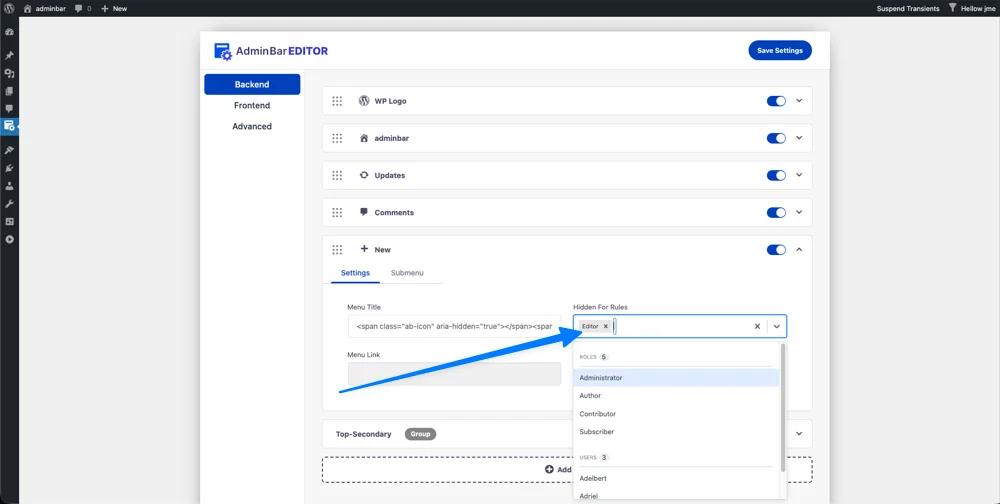
Finding and Toggling Items
Inside the Backend or Frontend tab, you'll see a list of existing admin bar items such as:
- WP Logo
- Updates
- Comments
- New
Each item has a toggle switch on the right side. If you want to hide an item globally (from everyone), you can turn that switch off. But we're going to be more selective.
Setting Hidden For Rules
To hide an item only for certain roles or usernames:
- Click on the item row (for example, click on "Comments" or "Updates") to expand its settings panel
- Look for the "Hidden For Rules" field - this is where the magic happens
- Click inside the field and start typing a user role name:
- AdministratorEditorAuthorContributorSubscriber
- Select the role or username from the dropdown that appears
- You can add multiple rules - for example, hide "Comments" for both "author" and "editor" roles.

Example: Hide Comments Icon from Author
Let's say you run a membership site and don't want Subscribers to see the Comments icon in the admin bar:
- Click on the Comments item to expand its settings
- Find Hidden For Rules
- Type or select "author" and select it from the dropdown
- Now only author won't see the Comments icon - Admins, Editors will still see it
This approach lets you fine-tune what each role sees without completely removing the admin bar.
Pro Tip: Hide Multiple Items for Better UX
Consider hiding these items for Subscribers or low-permission roles:
- Updates – They don't need to know about WordPress updates
- New – They can't create posts or pages anyway
- WP Logo – This can just create confusion
You can hide the entire admin bar for subscribers if you prefer a completely clean interface for that role.
Step 4: Save Your Configuration
Once you've configured the Hidden For Rules for all the items you want to control:
- Scroll to the top of the Admin Bar Editor screen
- Click the Save Settings button (blue button in the top right)
- The plugin will save your configuration immediately
From this point forward:
- Admin users will see all items as normal
- Editors, Authors, Subscribers, or specific usernames you targeted won't see the hidden items
- Each role gets a customized admin bar experience that matches their permission level
Completely Hide the Admin Bar for Frontend Visitors
Sometimes you don't want an entire user role to see the admin bar at all, especially on the frontend. This is common for:
- Subscriber-only communities
- Membership sites with limited permissions
- WooCommerce stores where customers shouldn't see backend shortcuts
- LMS platforms where students don't need admin tools
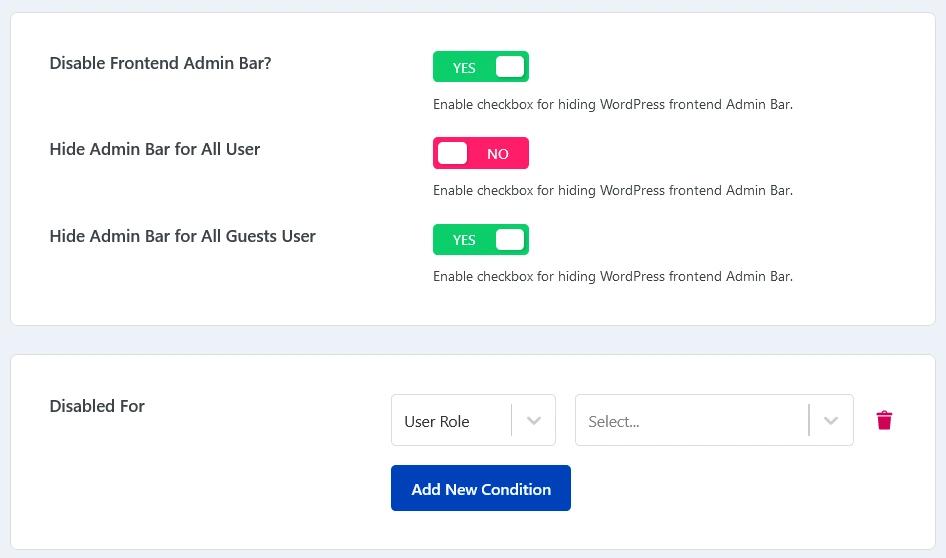
Disable Admin Bar Per Role
- Open Adminbar Editor → Frontend tab
- Look for the admin bar toggle or disable option
- Expand the settings for the overall admin bar visibility
- In the Disabled For field, select the roles that should not see the admin bar:
- Subscriber
- Customer (if using WooCommerce)
- Student (if using LearnDash)
- Any custom roles you've created
- Click Save Settings
Result: Subscribers and other selected roles won't see the admin bar on the frontend at all, creating a cleaner, more focused user experience.
For a deeper dive into different methods of hiding the admin bar (including code approaches), see the guide on hiding admin bar in WordPress sites.
Advanced: Add Custom Admin Bar Links with Role-Based Visibility (Pro)
Here's where Admin Bar Editor Pro transforms from a utility into a powerful workflow tool for agencies, teams, and multisite networks.
The Pro version lets you:
- Add custom admin bar items with your own labels, URLs, and icons
- Control visibility based on user role or specific username
- Create role-specific workflows without any coding
- Build agency-grade admin experiences for each client or team
Real-World Pro Use Case
Imagine you're running a client support site and you want:
- Editors and Admins to see a direct link in the admin bar to your client knowledge base
- Subscribers to see nothing - just a clean interface.
- Authors to see a different link to the editorial calendar
With Admin Bar Editor Pro, you can set this up in minutes, no custom code needed.
If you want a full tutorial just on adding custom links to the admin bar, check out the guide on how to add links to WordPress admin bar.
Step 1: Add a Custom Menu Item (Pro Feature)
- Open Adminbar Editor → Backend (or Frontend, depending on your need)
- Scroll down and look for the Add Item button at the bottom
- Click Add Item to create a new menu entry
- Fill in the Menu Title field with something descriptive:
- "Client Dashboard"
- "Content Guidelines"
- "Team Docs"
- "Support Portal"
- "Analytics Dashboard"
- In the Menu Link field, paste the URL:
- Can be a WordPress admin page (like
/wp-admin/edit.php) - Can be an external tool (like Notion, Trello, or a custom portal)
- Can be a Google Sheets document or team wiki
- Can be a WordPress admin page (like
- Click Select Icon and choose an appropriate icon so the link stands out visually in the admin bar
- The item is now added to your admin bar
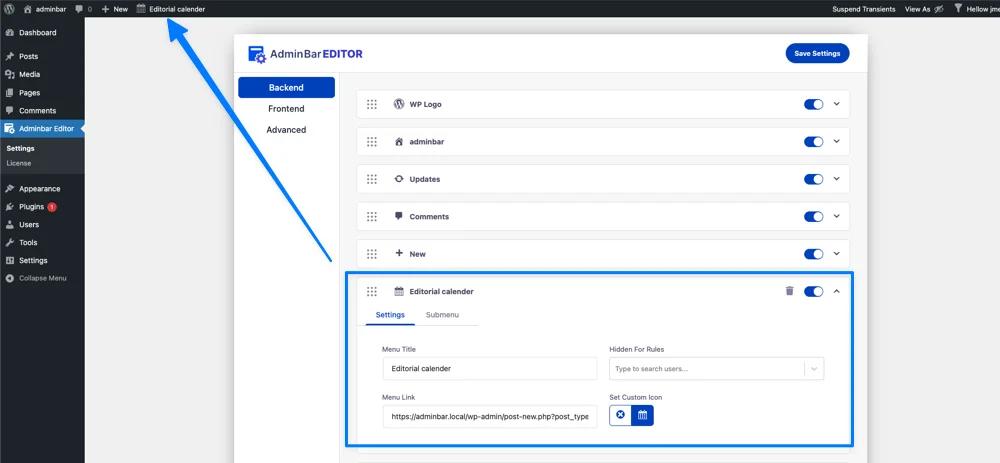
Step 2: Control Visibility with Hidden For Rules (Pro)
This is the magic that makes Pro worth upgrading:
- Expand your newly created custom item (if not already open)
- Locate the Hidden For Rules field
- Add the roles or usernames that should NOT see this link:
- Add "Subscriber" if this is only for Editors
- Add "Author" if this is only for Admins
- Add specific usernames for user-level granularity
- Leave the roles that should see it out of the Hidden For Rules list
- Click Save Settings
Result: Role-Based Admin Bar Workflows
Now your admin bar becomes a personalized dashboard:
- Admins see all custom links (e.g., server monitoring, client management tools)
- Editors see relevant links (e.g., content calendar, style guides)
- Authors see minimal links (e.g., just a help desk link)
- Subscribers see nothing (completely clean interface)
Each role gets exactly what they need, and the setup requires zero code.
For more ideas on making your admin bar user-friendly and role-aware, see the article on creating a user-friendly admin bar.
When Should You Upgrade to Admin Bar Editor Pro?
Free version is enough if you:
- Only need to hide individual items per role or user
- Want to remove the admin bar on the frontend for low-permission roles
- Aren't managing multiple teams or client sites
Pro version is worth it if you:
- Run an agency or multisite network and need custom workflows for each client or team
- Want to add deep-linked shortcuts to tools, reports, or documentation without writing code
- Need to create a truly user-friendly admin bar tailored to different user groups
- Manage large editorial teams with different permission levels and workflow needs
- Want to reduce support tickets by giving each role exactly what they need - and nothing more
Quick Recap: Key Takeaways
✓ Install Admin Bar Editor from the Plugins menu
✓ Choose Backend or Frontend context depending on where you need changes
✓ Use Hidden For Rules to target specific roles or usernames
✓ Hide individual items for a customized experience per role
✓ Completely disable the admin bar for Subscribers or other roles
✓ Use Pro to add custom links with role-based visibility
✓ Save your settings and test with different user accounts
Next Steps
Ready to take your admin bar customization further? Check out these related guides:
- How to Customize WordPress Admin Bar – The complete overview of all customization options
- How to Add a Link to WordPress Admin Bar – Step-by-step tutorial for adding custom links
- How to Hide WordPress Admin Bar for Subscribers – Dedicated guide for Subscriber-specific hiding
- Why You Need Admin Bar Editor – Philosophy and use cases for admin bar customization
- Creating a User-Friendly Admin Bar – Best practices for role-based admin experiences
Ready to create a cleaner, role-based WordPress admin experience? Install Admin Bar Editor today and start hiding items that clutter your users' dashboards. In just 5 minutes, you'll have a customized admin bar that matches your site's permission structure.
Your users will thank you for the simplified interface - and your support queue will thank you for removing those confusing, off-limits options.

Your email address will not be published