

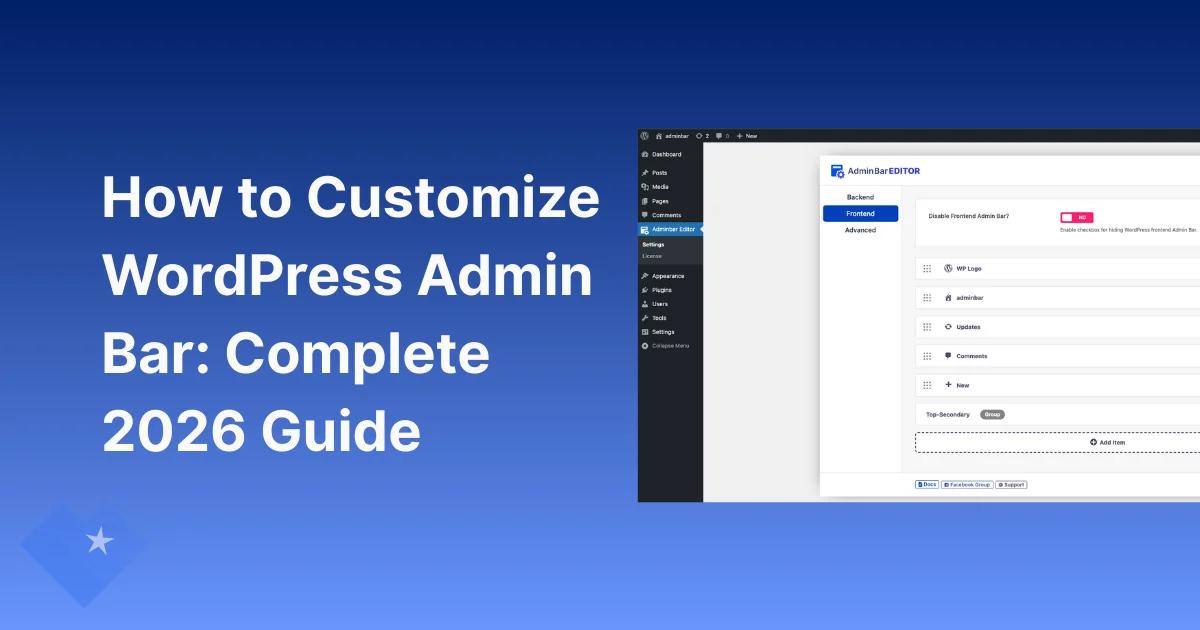

WordPress administrators, agency owners, and developers face a persistent challenge: the cluttered admin toolbar that stretches across the top of every WordPress site. What begins as a helpful navigation tool quickly devolves into an overwhelming jumble of links, plugin menus, and redundant options that hinder productivity and confuse clients.
This comprehensive guide addresses that challenge head-on, demonstrating how to transform the WordPress admin bar from a source of friction into a streamlined command center that enhances workflow efficiency, strengthens brand identity, and dramatically reduces client support requests.
The stakes extend beyond mere aesthetics. WordPress agencies report 30-50% fewer basic navigation questions from clients after implementing custom admin experiences, translating directly to recovered billable hours and improved profitability. For freelancers managing multiple client sites, admin bar customization eliminates the repetitive 2-4 hours per project spent on manual configuration. The WordPress ecosystem, valued at $2.67 billion in 2023 and projected to reach $6.32 billion by 2033, increasingly demands professional, branded admin interfaces as table stakes for competitive differentiation.
Why WordPress Admin Bar Customization Matters in 2026
The WordPress admin bar, officially called the Toolbar in WordPress documentation, serves as the persistent navigation interface visible to logged-in users on both the frontend and backend of WordPress installations. Originally introduced in WordPress 3.1 as a fundamental usability enhancement, this black toolbar provides one-click access to dashboard functions, content creation tools, and site management features.
The default admin bar presents 10-15 menu items to administrators, including the WordPress logo menu, site name dropdown, new content creator, comments section, updates notification, and user account controls. While comprehensive, this one-size-fits-all approach creates significant challenges for different user contexts. Content editors rarely need plugin configuration options. Small business owners become overwhelmed by technical menu items they'll never use. Agency clients accidentally break sites when presented with theme customization tools they don't understand.
The Business Case for Admin Bar Customization
WordPress site administrators who invest in admin bar customization realize measurable returns across three critical dimensions:
Operational Efficiency: Custom admin bars eliminate navigation friction, reducing the time required to access frequently-used functions. WordPress consultants report that streamlined interfaces save administrators 15-45 minutes per support ticket by preventing client-induced confusion. When multiplied across hundreds of client interactions annually, these time savings translate to recovered revenue potential measured in thousands of dollars.
Brand Consistency: Professional service providers, particularly agencies managing multiple client sites, use admin bar customization to reinforce brand identity throughout the WordPress experience. Replacing the default WordPress logo with client branding, customizing color schemes to match brand guidelines, and removing WordPress-specific terminology creates cognitive consistency that justifies premium pricing and demonstrates attention to detail during client handoffs.
Security and Access Control: Role-based admin bar customization prevents unauthorized access to sensitive functionality. By hiding plugin management, theme editing, and system settings from non-administrative users, site owners reduce the attack surface for both accidental misconfiguration and malicious manipulation. This becomes particularly critical for WordPress multisite networks managing dozens of interconnected properties with complex permission hierarchies.
The convergence of these benefits explains why admin bar customization has evolved from optional enhancement to professional necessity. WordPress agencies managing 5+ concurrent client sites identify admin bar customization as the threshold where manual configuration becomes operationally unsustainable. The emergence of specialized plugins addressing this need, with thousands of active installations and professional pricing models, validates the market demand for efficient solutions.
Understanding the Default WordPress Admin Bar
Before customizing the admin bar, administrators must understand its architecture, default elements, and functional hierarchy. This foundational knowledge prevents accidental removal of critical navigation elements and enables strategic decisions about which modifications deliver maximum value.
Structural Components and Default Elements
The WordPress admin bar employs a parent-child hierarchical structure where top-level menu items (nodes) can contain nested submenus up to three levels deep. Each node possesses unique attributes including an identifier (ID), display text (title), destination URL (href), metadata for styling, and optional parent relationships for submenu positioning.
Primary Menu Items (Left Side):
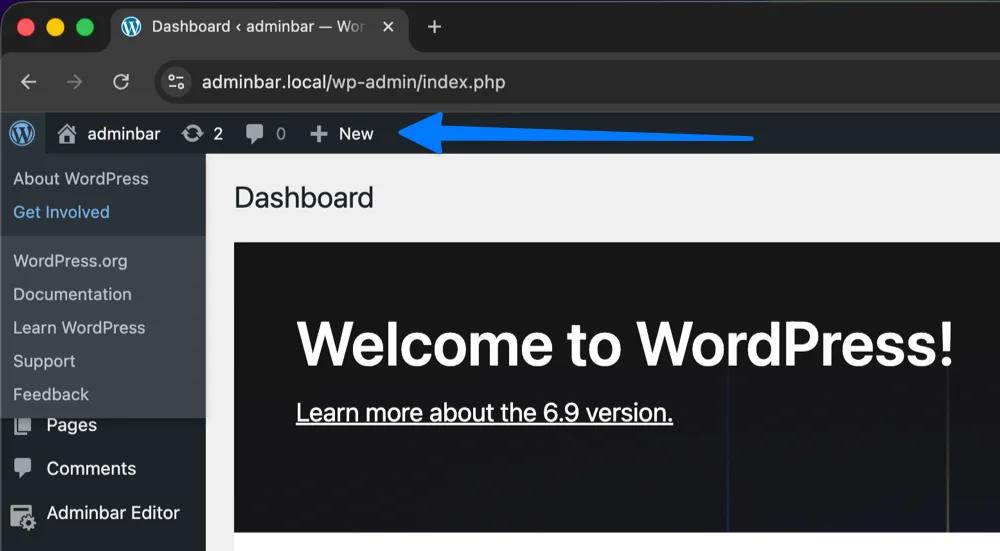
The WordPress logo appears first, opening a dropdown with links to WordPress.org documentation, support forums, and feedback channels. The site name menu follows, providing access to dashboard, themes, widgets, menus, and customizer interfaces. The new content menu aggregates shortcuts for creating posts, media uploads, pages, and users, though plugin installations frequently inject additional items here.
Secondary Menu Items (Right Side):
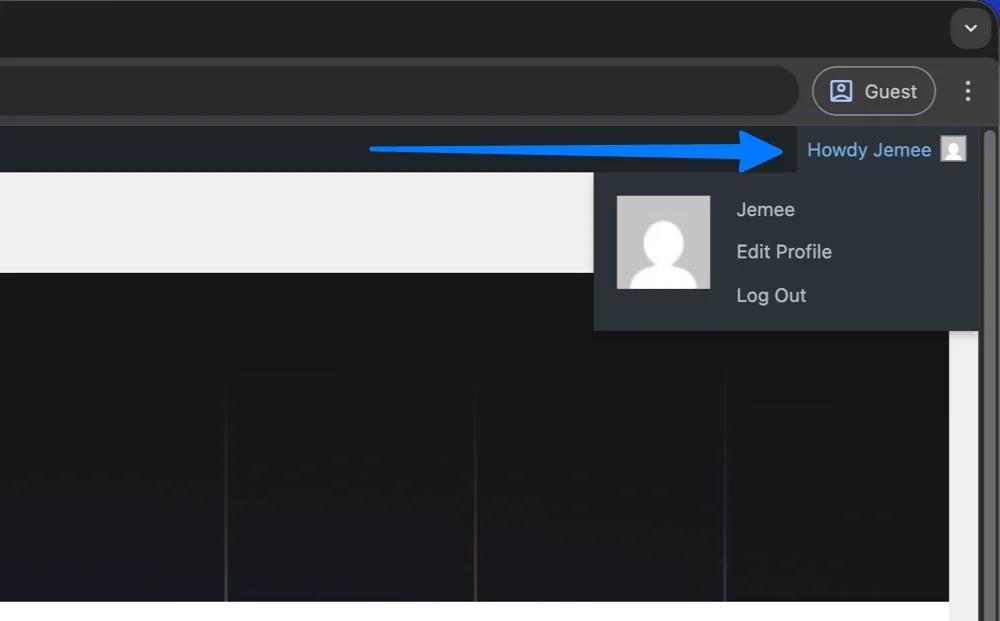
The comments section displays pending moderation counts with direct links to comment management. The updates menu surfaces available WordPress core, theme, and plugin updates requiring administrator attention. The search interface enables quick navigation to posts and pages. The user account menu displays the greeting text (default: "Howdy"), profile settings, and logout functionality.
Context-Specific Elements:
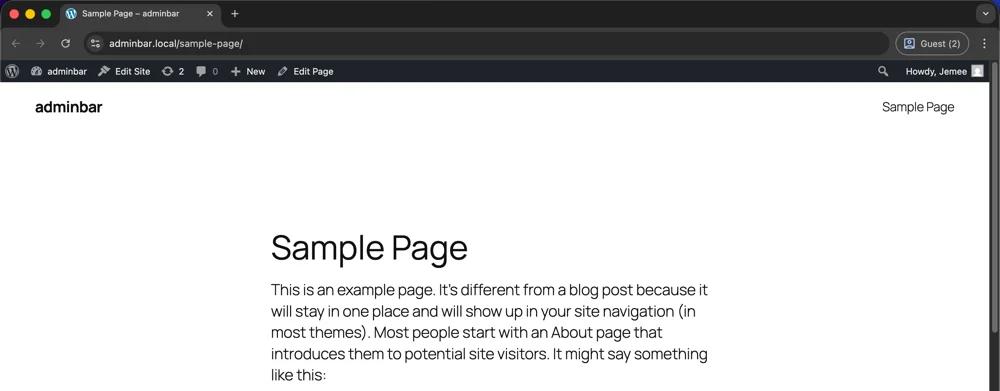
When viewing frontend pages, WordPress adds an "Edit Page" or "Edit Post" link providing direct access to the editor for the current content. The Edit site link appears on frontend pages when WordPress detects the active theme supports live preview customization. Plugin-specific menus inject themselves based on plugin settings, with popular SEO plugins, caching tools, and page builders commonly adding admin bar presence.
Functional Behavior and Technical Implementation
The admin bar initializes through the WP_Admin_Bar class defined in wp-includes/class-wp-admin-bar.php. WordPress core functions populate default menu items during the admin_bar_menu action hook, which fires with priority 10-80 for various core components. This hook architecture enables developers to inject custom nodes, remove unwanted items, or reorder existing elements by hooking functions at priority 999 to ensure execution after core initialization.
The admin bar distinguishes between frontend and backend contexts, displaying slightly different menu configurations based on whether users view public pages or dashboard screens. The is_admin() conditional check enables developers to create context-specific customizations that only apply to one environment.
WordPress stores admin bar display preferences at the user level through the "Show Toolbar when viewing site" setting in user profiles. When enabled, WordPress injects the admin bar HTML into both frontend page headers and backend dashboard templates, maintaining consistent navigation regardless of context.
Hidden Complexities and Common Misconceptions
Many administrators mistakenly believe the admin bar represents merely a visual navigation element. In reality, WordPress depends on specific PHP functions for proper toolbar rendering. The wp_head() function in header.php and wp_footer() function in footer.php must execute correctly for the admin bar to appear. Theme developers who omit these functions or plugins that interfere with their execution create the "missing admin bar" issue that represents one of the most common WordPress troubleshooting queries.
The admin bar also interacts with WordPress caching systems in complex ways. Aggressive caching plugins that serve static HTML to logged-in users can prevent the admin bar from appearing, requiring cache exclusion rules for authenticated sessions. Content Delivery Networks (CDNs) with edge caching must implement similar exclusions to prevent serving cached, admin-bar-less pages to logged-in administrators.
Understanding these technical underpinnings enables strategic customization decisions. Administrators who comprehend the parent-child node structure can create logical menu hierarchies. Those who recognize the hook priority system can ensure their customizations execute in the correct sequence. Professionals who understand caching interactions can troubleshoot implementation issues that would otherwise consume hours of trial-and-error debugging.
No-Code Customization Methods
WordPress administrators without PHP development expertise can leverage specialized plugins to customize admin bars through visual interfaces, eliminating the need to write or maintain custom code. These no-code solutions democratize admin bar customization, making professional-grade toolbar management accessible to the estimated 60% of WordPress site owners who lack programming backgrounds.
Admin Bar Editor by JewelTheme: Comprehensive Visual Customization
Admin Bar Editor by JewelTheme represents the most feature-complete no-code solution for WordPress toolbar customization, with over 2,000 active installations and professional pricing starting at $29 annually for 5 websites. The plugin provides drag-and-drop interface for reordering admin bar items, checkbox controls for hiding unwanted elements, and form-based tools for adding custom menu items, all accessible through an intuitive dashboard panel.
Core Functionality:
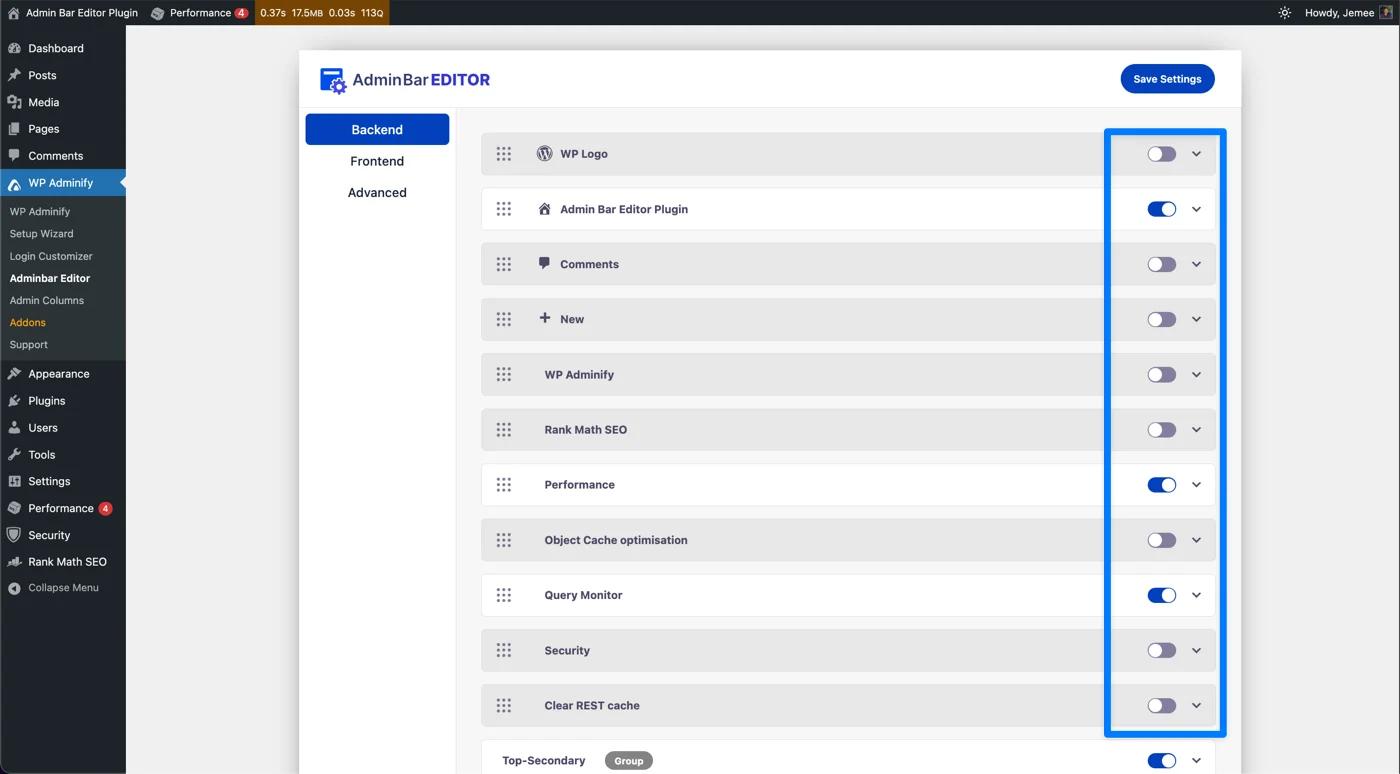
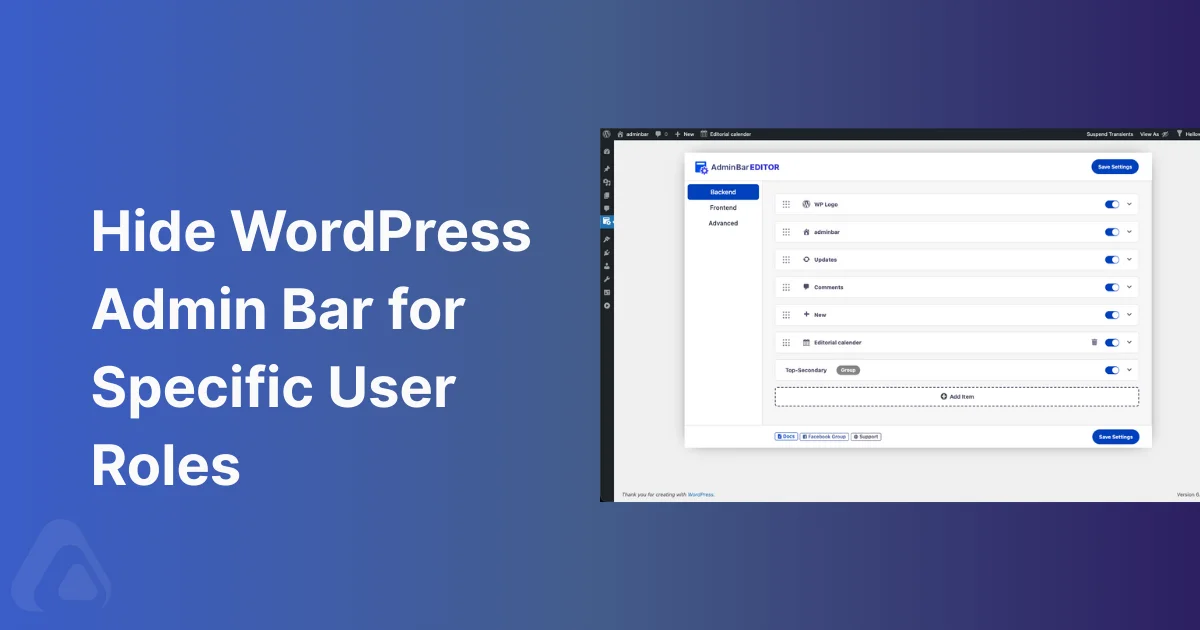
The plugin's Backend Admin Bar section displays all existing toolbar items in a sortable list. Administrators drag items up or down to reposition them, immediately seeing visual feedback of the new arrangement. Toggle switches beside each item enable one-click hiding without deleting the underlying functionality. Clicking individual items expands detailed configuration panels where users can rename labels, change icons from the Dashicons library, and set role-based visibility rules.
Adding custom menu items requires completing a simple form specifying the menu title, destination URL, optional icon selection, and parent menu for submenu creation. The plugin supports nested submenus up to three levels deep, enabling complex hierarchical structures for organizing related functions. URL fields accept both internal WordPress admin URLs (e.g., /wp-admin/options-general.php) and external links to documentation, support portals, or client resources.
Role-Based Customization:
Admin Bar Editor's most powerful feature enables creating different admin bar configurations for each WordPress user role. The plugin's role selector dropdown allows administrators to switch between Administrator, Editor, Author, Contributor, and Subscriber views, then customize the visible items for each role independently. This capability proves essential for agencies and multiuser sites where different team members require role-appropriate toolbars without overwhelming options.
For example, administrators might configure Authors to see only "New Post," "My Posts," and "Profile" links, hiding theme customization, plugin management, and update notifications that fall outside content creation responsibilities. Shop managers on WooCommerce sites might receive custom links to product inventory, order processing, and customer management while remaining isolated from WordPress core settings.
Premium Features:
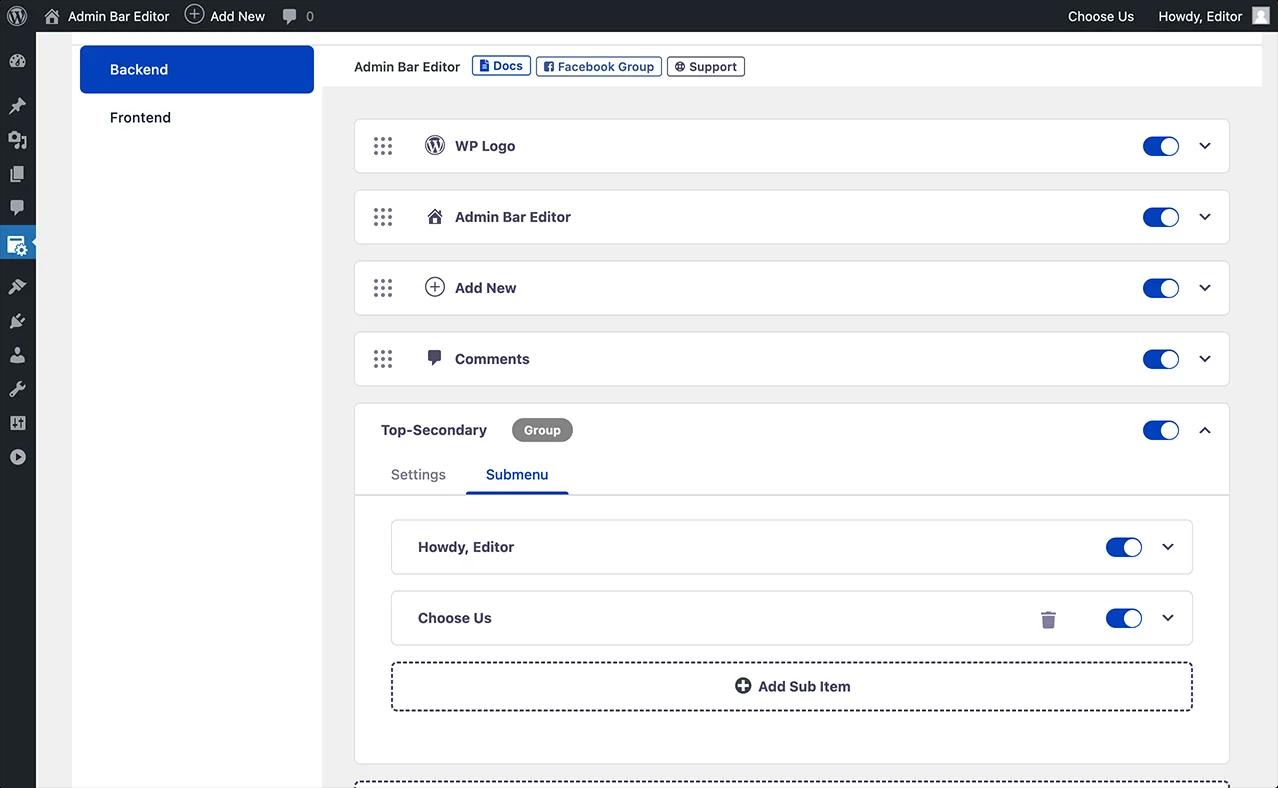
The Pro version extends functionality with advanced styling options including custom background colors, gradient fills, text color customization, hover effect controls, and dropdown menu theming. These styling capabilities enable matching the admin bar to brand guidelines or improving contrast for users with visual impairments. The secondary toolbar menu management (Pro) provides control over the right-side user menu, comments, and search elements that free versions leave untouched.
Admin Bar Editor integrates with WordPress Multisite installations, enabling network administrators to apply admin bar configurations across dozens or hundreds of sites from a centralized interface. Network-level configuration eliminates the per-site configuration burden that makes admin bar customization prohibitively time-consuming for large WordPress multisite deployments.
Alternative No-Code Solutions
Ultimate Dashboard: This comprehensive admin customization plugin includes admin bar editing alongside dashboard widget management, login page customization, and menu restructuring. The Admin Bar Editor module within Ultimate Dashboard provides similar drag-and-drop reordering, item hiding, and custom menu creation capabilities. Ultimate Dashboard particularly appeals to administrators seeking an all-in-one solution for complete admin area transformation rather than toolbar-specific tools.
White Label CMS: Positioned explicitly for agencies and client work, White Label CMS emphasizes WordPress branding removal alongside admin bar customization. The plugin's wizard-based setup guides administrators through replacing the WordPress logo with client branding, customizing the "Howdy" greeting text, and hiding WordPress-specific terminology. White Label CMS excels in scenarios where complete WordPress identity removal constitutes the primary objective.
Branda (WPMU DEV): Part of the comprehensive WPMU DEV plugin suite, Branda offers admin bar customization within a broader white-labeling framework. The Admin Bar module enables logo replacement, menu visibility control, custom menu item addition, and reordering through drag-and-drop. Branda's role-based visibility controls allow creating different toolbar configurations for different user roles, with frontend toolbar visibility toggles for showing or hiding the admin bar to site visitors.
Plugin Selection Criteria
Administrators selecting no-code admin bar customization plugins should evaluate several critical factors:
Feature Completeness: Does the plugin support all required customization types, hiding items, reordering, adding custom links, role-based visibility, and styling controls? Plugins offering comprehensive functionality eliminate the need for multiple specialized tools.
User Interface Quality: How intuitive is the plugin's configuration interface? Well-designed admin panels with drag-and-drop controls and visual feedback reduce learning curves and minimize configuration errors.
WordPress Compatibility: Does the plugin support the current WordPress version and major theme frameworks? Regular updates indicating active development ensure continued functionality as WordPress core evolves.
Performance Impact: How much overhead does the plugin add to page load times? Lightweight plugins with optimized code prevent admin area slowdown.
Documentation and Support: Does the vendor provide comprehensive documentation, video tutorials, and responsive support channels? Quality support resources accelerate implementation and troubleshooting.
For most WordPress administrators, Admin Bar Editor by JewelTheme offers the optimal balance of comprehensive features, intuitive interface, and professional support at accessible price points. Agencies managing dozens of sites benefit from the unlimited site licenses and Multisite support. Individual site owners appreciate the straightforward configuration that delivers results without requiring PHP knowledge.
Common Admin Bar Customization Scenarios
Real-world WordPress administration presents recurring customization requirements that span industries, user types, and site purposes. Understanding these common scenarios, and the specific solutions that address them, enables administrators to implement targeted modifications that deliver immediate value.
Hiding Unnecessary Items for Cleaner Interfaces
The most frequent admin bar customization involves removing irrelevant menu items that clutter the interface and distract users from core responsibilities. WordPress plugins aggressively inject admin bar menus, with some sites accumulating 15-20+ toolbar items that create unusable navigation experiences.
Using Admin Bar Editor (No-Code):
Navigate to the Admin Bar Editor plugin settings and locate the Backend Admin Bar section. Each existing menu item appears with a visibility toggle switch. Click toggles to "off" position for items you want to hide, comments notifications for non-community sites, WordPress News for agencies managing client sites, plugin-specific menus for tools clients shouldn't access. Changes take effect immediately after clicking Save Settings, with no server reconfiguration or cache clearing required in most cases.
For role-specific hiding, select the target user role (e.g., Editor, Author) from the dropdown menu, then toggle off items that role shouldn't access. This creates clean, focused toolbars where content editors see writing tools while administrators retain full functionality.
Using Code (functions.php):
Developers preferring code-based solutions can hide admin bar items by hooking into the admin_bar_menu action with priority 999 to ensure execution after core items load:
phpfunction remove_admin_bar_items($wp_admin_bar) {
    $wp_admin_bar->remove_node('wp-logo');      // WordPress logo
    $wp_admin_bar->remove_node('comments');     // Comments
    $wp_admin_bar->remove_node('new-content');  // New content menu
    $wp_admin_bar->remove_node('customize');    // Customizer link
    $wp_admin_bar->remove_node('updates');      // Updates notification
}
add_action('admin_bar_menu', 'remove_admin_bar_items', 999);
The remove_node() method accepts node IDs corresponding to each menu item. Identifying node IDs requires inspecting the page source and locating the id attribute on admin bar list items (format: wp-admin-bar-{node-id}), then using only the portion after the wp-admin-bar- prefix.
Reordering Items for Workflow Optimization
Strategic menu item sequencing positions frequently-used functions at the beginning of the toolbar, reducing clicks and cognitive load. Content-heavy sites benefit from moving "New Post" to the leftmost position. WooCommerce stores improve efficiency by prioritizing "Products" and "Orders" links.
Drag-and-Drop Reordering:
Admin Bar Editor and similar plugins provide visual reordering through drag handles on menu items. Click and hold the drag icon beside any menu item, then move it up or down in the list to reposition. Drop the item in its new location, and the plugin automatically recalculates menu structure. Changes appear immediately in the live admin bar after saving settings.
This intuitive interface eliminates the need to understand parent-child relationships or node priorities, making reordering accessible to non-technical administrators.
Code-Based Reordering:
WordPress core doesn't provide native reordering functions, requiring a workaround: removing nodes and re-adding them in the desired sequence. This approach proves more complex than hiding items, making plugins the preferred solution for reordering unless developers require additional conditional logic:
phpfunction reorder_admin_bar_items($wp_admin_bar) {
    // Remove items you want to reorder
    $wp_admin_bar->remove_node('new-content');
    $wp_admin_bar->remove_node('comments');

    // Re-add them in new order
    $wp_admin_bar->add_node(array(
        'id'    => 'comments',
        'title' => 'Comments',
        'href'  => admin_url('edit-comments.php'),
    ));

    $wp_admin_bar->add_node(array(
        'id'    => 'new-content',
        'title' => 'New',
        'href'  => admin_url('post-new.php'),
    ));
}
add_action('admin_bar_menu', 'reorder_admin_bar_items', 999);
Adding Custom Links and Shortcuts
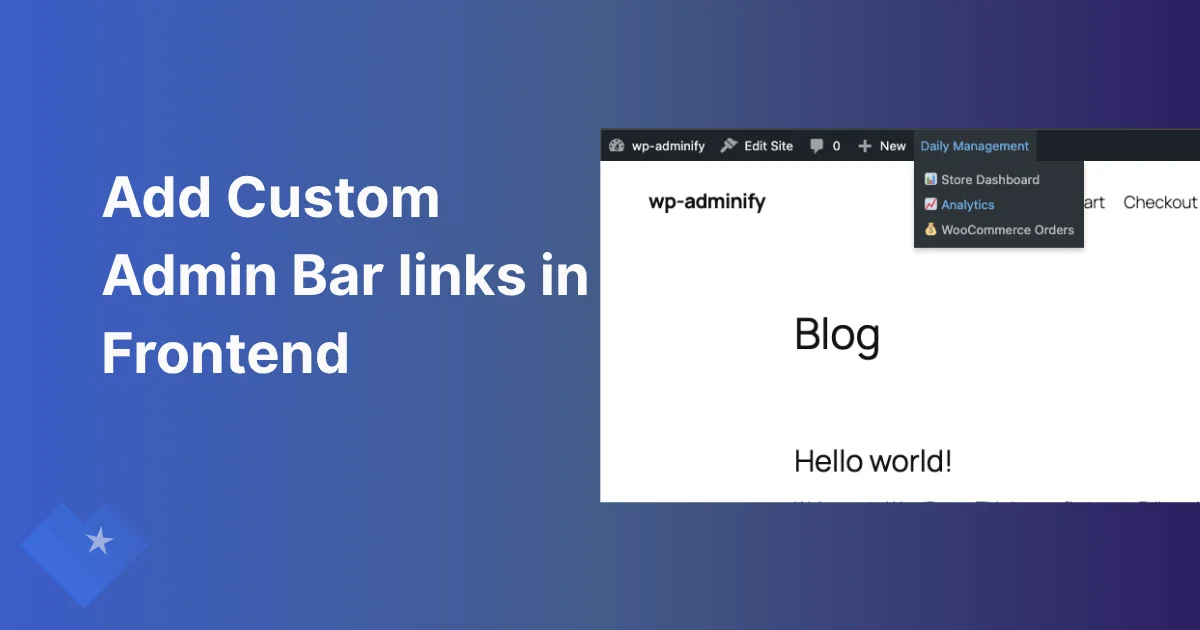
Custom admin bar links provide one-click access to frequently-visited pages, external documentation, support portals, or client-specific resources. Agencies add links to project management tools. WooCommerce sites create shortcuts to shipping providers. Membership sites link to user management interfaces.
Plugin-Based Custom Links:
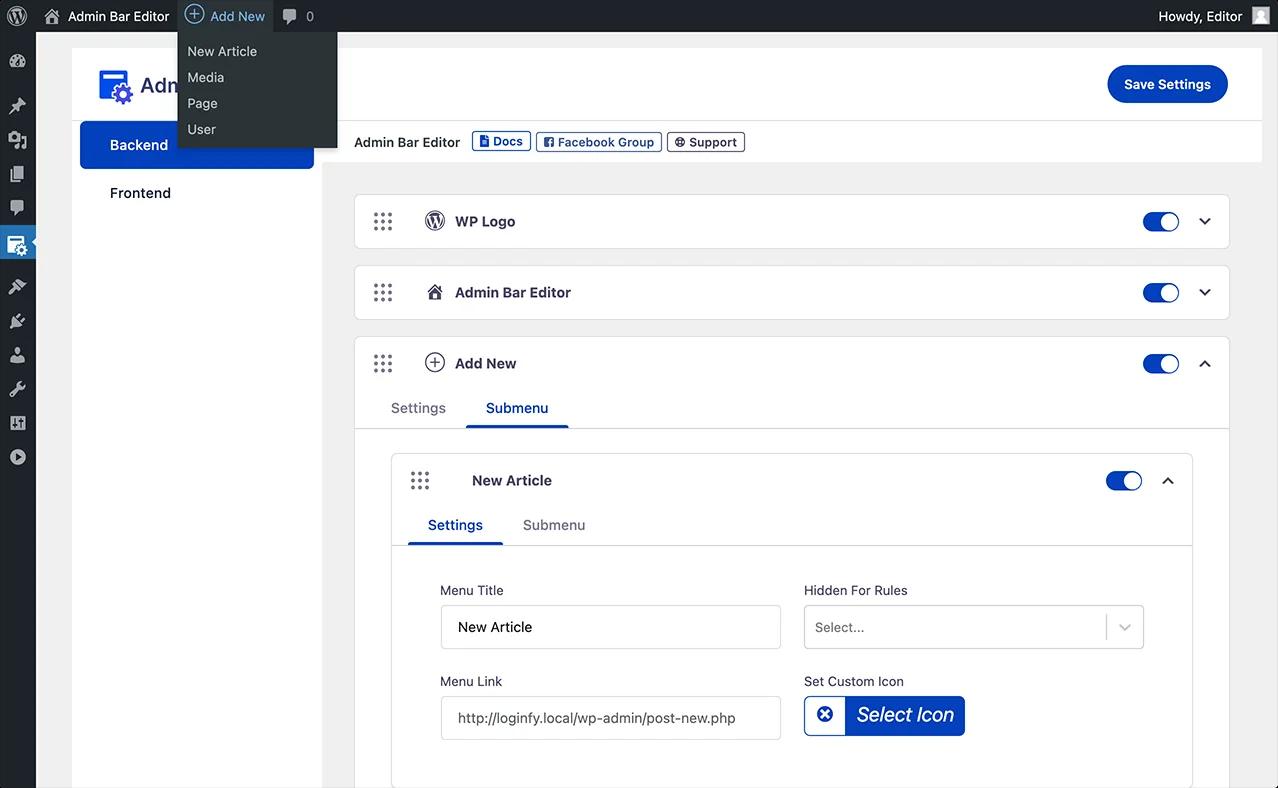
Admin Bar Editor's "Add New Item" button opens a form accepting the menu title, destination URL, icon selection (optional), and parent menu for creating submenus. The Title field supports HTML, enabling text formatting or emoji inclusion. URL fields accept relative WordPress admin URLs (/wp-admin/admin.php?page=custom-plugin) or absolute external URLs (https://support.clientsite.com).
The Parent Menu dropdown enables creating submenus under existing admin bar items. Selecting "Site Name" as parent places the custom link in the site dropdown menu, organizing related functions hierarchically. Selecting no parent creates a top-level menu item.
Code Implementation:
Custom links via code require the add_node() method with appropriate parameters:
phpfunction add_custom_admin_links($wp_admin_bar) {
    // Top-level custom link
    $wp_admin_bar->add_node(array(
        'id'    => 'client_portal',
        'title' => 'Client Portal',
        'href'  => 'https://portal.clientsite.com',
        'meta'  => array(
            'target' => '_blank',  // Open in new tab
            'class'  => 'custom-portal-link'
        )
    ));

    // Submenu under existing item
    $wp_admin_bar->add_node(array(
        'id'     => 'analytics_dashboard',
        'parent' => 'site-name',  // Parent node ID
        'title'  => 'Analytics',
        'href'   => admin_url('admin.php?page=analytics'),
    ));
}
add_action('admin_bar_menu', 'add_custom_admin_links', 999);
The meta array accepts targeting parameters for controlling link behavior and CSS classes for styling. The target attribute value _blank opens links in new browser tabs, preventing navigation away from the WordPress admin area.
Customizing Icons and Visual Elements
Icon customization reinforces brand identity and improves visual navigation by replacing generic WordPress iconography with recognizable symbols. Admin Bar Editor provides icon selection from the Dashicons library (200+ icons built into WordPress), Themify Icons, Simple Line Icons, and Icomoon collections.
Selecting icons requires clicking the icon picker in the menu item configuration panel, browsing available icon sets, and clicking the desired icon. The plugin automatically applies the icon class to the menu item, replacing default text-only presentation with visual symbols.
Code-based icon implementation uses Dashicons classes in the title parameter:
php$wp_admin_bar->add_node(array(
    'id'    => 'support',
    'title' => '<span class="dashicons dashicons-sos"></span> Support',
    'href'  => 'https://support.site.com',
));
Replacing the WordPress Logo
The WordPress logo in the admin bar's leftmost position provides branding opportunity for agencies, white-label solutions, and client-facing installations. Replacing this logo with client branding, company logos, or custom imagery creates professional polish that justifies premium pricing.
Admin Bar Editor Pro:
The Pro version includes logo replacement functionality accepting uploaded images or media library selections. Navigate to the Logo Replacement section, upload your logo image (recommended dimensions: 20px height), and save settings. The plugin automatically replaces the WordPress logo while maintaining the clickable functionality.
Advanced Role-Based Customization and Conditional Visibility
WordPress installations supporting multiple user roles, agencies managing client access, membership sites with tiered privileges, or enterprise deployments with departmental hierarchies, require sophisticated admin bar customization that adapts dynamically based on user context. Advanced techniques enable creating role-specific toolbar configurations, implementing conditional visibility rules, and restricting access to sensitive functionality.
Understanding WordPress User Roles and Capabilities
WordPress implements a role-based access control system with five default roles possessing hierarchical capabilities: Super Admin (multisite networks only) controls network-wide settings; Administrator accesses all single-site functions; Editor manages all content but cannot modify themes, plugins, or settings; Author publishes their own content; Contributor writes content requiring approval; Subscriber reads content and manages their profile.
Each role possesses specific capabilities, granular permissions controlling access to functions like edit_posts, manage_options, delete_users, or edit_theme_options. Admin bar customization leverages these capabilities to show or hide menu items based on user permissions rather than rigid role assignments, providing flexibility for sites with custom roles created by membership or e-commerce plugins.
Role-Based Admin Bar Configuration with Plugins
Admin Bar Editor's role selector enables creating distinct admin bar configurations for each user role. The workflow follows this pattern:
- Select "Administrator" from the role dropdown in plugin settings
- Configure the complete admin bar with all necessary functionality visible
- Switch to "Editor" role and hide items editors shouldn't access, plugins, themes, updates, system settings
- Continue through remaining roles (Author, Contributor, Subscriber), progressively hiding more items as permissions decrease
- Save settings, triggering the plugin to store separate configurations for each role
When users log in, the plugin detects their assigned role and loads the corresponding admin bar configuration. This role-based approach eliminates the one-size-fits-all limitation of default WordPress, creating tailored experiences that prevent confusion and accidental misconfiguration.
Practical Role Configuration Examples:
| User Role | Visible Admin Bar Items | Hidden Items |
|---|---|---|
| Administrator | All items (unchanged) | None |
| Editor | Site Name, New Content (posts/pages only), Comments, My Account | WordPress Logo, Plugins, Themes, Updates, Customize |
| Author | New Post, My Posts, My Account | All others |
| Contributor | New Post (without Publish), My Drafts, My Account | Publishing controls, all others |
| Subscriber | My Account only | All functionality menus |
This progressive restriction ensures each user role sees only contextually relevant tools, reducing cognitive overload and improving security by hiding administrative functions from non-privileged users.
Code-Based Role and Capability Filtering
Developers implementing custom admin bar modifications can conditionally show or hide items using WordPress capability checks:
phpfunction role_based_admin_bar($wp_admin_bar) {
    // Hide for all non-administrators
    if (!current_user_can('manage_options')) {
        $wp_admin_bar->remove_node('wp-logo');
        $wp_admin_bar->remove_node('customize');
        $wp_admin_bar->remove_node('updates');
    }

    // Show special item only for editors and above
    if (current_user_can('edit_others_posts')) {
        $wp_admin_bar->add_node(array(
            'id'    => 'editorial_calendar',
            'title' => 'Editorial Calendar',
            'href'  => admin_url('admin.php?page=editorial-calendar'),
        ));
    }

    // Contributor-specific restrictions
    if (current_user_can('edit_posts') && !current_user_can('publish_posts')) {
        $wp_admin_bar->remove_node('new-content');
    }
}
add_action('admin_bar_menu', 'role_based_admin_bar', 999);
The current_user_can() function checks whether the logged-in user possesses specific capabilities. This capability-based approach proves more flexible than direct role checks (current_user_has_role()) because it adapts automatically when sites implement custom roles with modified capability sets.
Hiding Admin Bar for Specific Users or Roles
Some WordPress installations require completely hiding the admin bar from certain user types, subscribers on membership sites, customers on WooCommerce stores, or guest authors who shouldn't see administrative interfaces.
Plugin Solutions:
"Hide Admin Bar Based on User Roles" plugin provides checkbox selection for roles that should never see the admin bar. The plugin offers four hiding modes: hide for all users, hide for guests (non-logged-in visitors), hide for specific roles, or hide based on capabilities. After installing and activating, administrators navigate to Settings > Hide Admin Bar, select target roles, and save configuration.
Code Implementation:
phpfunction hide_admin_bar_by_role() {
    // Hide for subscribers and contributors
    if (current_user_can('subscriber') || current_user_can('contributor')) {
        show_admin_bar(false);
    }

    // Hide for specific user IDs
    $user = wp_get_current_user();
    $hidden_user_ids = array(42, 87, 133);
    if (in_array($user->ID, $hidden_user_ids)) {
        show_admin_bar(false);
    }
}
add_action('init', 'hide_admin_bar_by_role');
The show_admin_bar(false) function completely disables admin bar rendering for the current request. This approach prevents the bar from appearing on both frontend and backend, requiring users to access the dashboard via direct /wp-admin URLs.
Advanced Conditional Visibility Scenarios
Frontend vs. Backend Differentiation:
Display different admin bar configurations depending on whether users view frontend pages or backend dashboard screens:
phpfunction context_aware_admin_bar($wp_admin_bar) {
    if (!is_admin()) {  // Frontend only
        $wp_admin_bar->remove_node('new-content');
        $wp_admin_bar->remove_node('comments');
    } else {  // Backend only
        $wp_admin_bar->add_node(array(
            'id'    => 'backend_tool',
            'title' => 'Backend Tool',
            'href'  => admin_url('admin.php?page=backend-tool'),
        ));
    }
}
add_action('admin_bar_menu', 'context_aware_admin_bar', 999);
Page-Specific Menu Items:
Show admin bar items only on specific pages or post types:
phpfunction page_specific_admin_bar($wp_admin_bar) {
    global $pagenow, $post;

    // Show only on post editing screens
    if ($pagenow === 'post.php' && $post->post_type === 'post') {
        $wp_admin_bar->add_node(array(
            'id'    => 'post_analytics',
            'title' => 'View Post Analytics',
            'href'  => 'https://analytics.site.com/post/' . $post->ID,
        ));
    }

    // Show only on WooCommerce product pages
    if (is_singular('product')) {
        $wp_admin_bar->add_node(array(
            'id'    => 'product_inventory',
            'title' => 'Check Inventory',
            'href'  => admin_url('admin.php?page=inventory&product=' . $post->ID),
        ));
    }
}
add_action('admin_bar_menu', 'page_specific_admin_bar', 999);
Custom User Meta Conditions:
Create visibility rules based on custom user metadata, completion of training modules, subscription status, or account verification:
phpfunction metadata_based_admin_bar($wp_admin_bar) {
    $user_id = get_current_user_id();
    $training_complete = get_user_meta($user_id, 'training_completed', true);

    if ($training_complete === 'yes') {
        $wp_admin_bar->add_node(array(
            'id'    => 'advanced_tools',
            'title' => 'Advanced Tools',
            'href'  => admin_url('admin.php?page=advanced-tools'),
        ));
    } else {
        $wp_admin_bar->add_node(array(
            'id'    => 'training_portal',
            'title' => 'Complete Training',
            'href'  => admin_url('admin.php?page=training'),
            'meta'  => array('class' => 'training-reminder'),
        ));
    }
}
add_action('admin_bar_menu', 'metadata_based_admin_bar', 999);
These advanced techniques transform the admin bar from static navigation into an intelligent interface that adapts to user context, permissions, and organizational requirements. The strategic application of role-based and conditional customization prevents information overload, improves security posture, and creates intuitive experiences tailored to specific user responsibilities rather than forcing all users to navigate identical, overwhelming toolbars.
Best Practices for Client Sites and Agency Deployments
WordPress agencies, freelance developers, and consultants managing multiple client installations face unique admin bar customization challenges. Client sites require balancing professional branding, simplified interfaces for non-technical users, and maintainable configurations that survive WordPress updates and plugin changes. Industry best practices distilled from thousands of client deployments provide tested frameworks for delivering consistent, high-quality admin experiences.
Establishing Customization Standards Across Client Portfolio
Successful agencies develop standardized admin bar configurations applied consistently across client sites, creating predictable experiences that reduce training requirements and support burden. This standardization begins with defining client role templates, typical permission sets and corresponding admin bar configurations for common client team structures.
Standard Client Role Templates:
Create documented admin bar configurations for three standard client roles:
Admin Client: Full admin bar access with WordPress branding replaced by client branding. Remove only WordPress.org links and developer-focused items (WordPress News, plugin editor access).
Content Manager: Simplified bar showing only content creation, media management, and menu editing. Hide themes, plugins, updates, system settings, and technical tools.
Content Contributor: Minimal bar with new post creation, draft management, and profile settings. Hide all administrative functionality and publishing controls.
Documenting these templates enables rapid deployment across new client projects while maintaining flexibility for client-specific modifications. Store templates as exportable configuration files (if the plugin supports export/import) or as code snippets in a agency-wide repository.
Pre-Handoff Configuration Checklist
Before delivering client sites, complete this admin bar configuration checklist to ensure professional presentation:
Branding Elements:
- Replace WordPress logo with client logo (20px height recommended)
- Customize "Howdy" greeting text to client-appropriate language ("Welcome," "Hello")
- Remove WordPress.org links from admin bar dropdowns
- Update admin bar link destinations to client documentation or support portals
Navigation Simplification:
- Hide plugin-specific menus clients won't use (caching, SEO technical settings, developer tools)
- Remove theme customization link if client shouldn't modify design
- Hide updates notification to prevent client concern about technical maintenance
- Remove new content types clients won't create (custom post types specific to functionality)
Custom Additions:
- Add link to client support portal or help documentation
- Create shortcut to most-used client function (e.g., "New Event" for event management sites)
- Add link to website analytics dashboard
- Include link to content guidelines or style guide
Testing Procedures:
- Log in as each client user role and verify appropriate admin bar items appear
- Test all custom links to ensure proper destination and access permissions
- Check frontend and backend contexts for consistent experience
- Verify admin bar displays correctly on mobile devices if clients manage content from tablets
Documentation and Training Materials
Client confusion represents the primary source of post-launch support requests, with admin navigation questions consuming 30-50% of agency support time on poorly-documented sites. Comprehensive documentation reduces this burden dramatically.
Video Tutorials:
Record 2-5 minute screen-capture videos demonstrating admin bar navigation specific to the client's configuration. Cover:
- Accessing the WordPress dashboard via admin bar links
- Creating new content using admin bar shortcuts
- Finding profile settings and logout function
- Accessing custom features added to their admin bar
Upload videos to unlisted YouTube or client portal, then embed in welcome documentation or custom dashboard widgets.
Visual Admin Bar Maps:
Create annotated screenshots of the client's customized admin bar with callouts explaining each visible item's purpose. This single-page reference reduces "where do I find X?" questions and provides immediate visual guidance for spatial learners.
Written Quick Reference:
Provide a table documenting each admin bar item, its function, and when to use it:
| Admin Bar Item | What It Does | When to Use It |
|---|---|---|
| New > Post | Creates new blog post | Publishing news or blog content |
| New > Page | Creates new website page | Adding permanent site pages (About, Services, etc.) |
| New > Event | Creates new event listing | Announcing upcoming events |
| Site Name > Menus | Edits navigation menus | Changing website menu structure |
| My Account > Profile | Updates your user profile | Changing password or contact information |
Maintenance and Update Considerations
Admin bar customizations must survive WordPress core updates, plugin updates, and theme changes without requiring developer intervention.
Plugin-Based vs. Code-Based Durability:
Plugin-based customizations automatically adapt to WordPress core changes, as plugin developers update compatibility with each WordPress release. Code-based customizations in functions.php files require manual review after major WordPress updates to verify continued compatibility, creating ongoing maintenance obligations.
For client sites, plugin-based customization proves more sustainable unless specific requirements demand code-based solutions not available through plugins.
Theme Independence:
Ensure admin bar customizations don't depend on active theme functionality. Admin bar modifications should reside in plugins (recommended) or child theme functions.php files rather than parent theme files. This prevents customization loss when clients switch themes or when parent themes update.
Documentation for Future Developers:
Client sites frequently transfer between agencies or developers. Document admin bar customizations in code comments or site documentation to prevent future developers from accidentally breaking configurations or reimplementing identical functionality:
php/**
 * Client Admin Bar Customization
 *
 * Implemented: March 2026
 * Purpose: Simplified admin bar for non-technical client team
 *
 * Configuration:
 * - Hides: WordPress logo, customize, updates, plugin menus
 * - Custom links: Client portal (https://portal.client.com)
 * - Role-based: Editors see content tools only
 *
 * IMPORTANT: Client requests changes via [email protected]
 * Do not modify without updating client documentation
 */
function client_admin_bar_config($wp_admin_bar) {
    // Implementation...
}
Security Implications of Admin Bar Customization
Admin bar modifications impact security surface area in ways requiring careful consideration:
Hiding ≠ Security:
Hiding admin bar items from users does not remove underlying functionality or prevent direct URL access. Users who know the direct URL to plugin settings (/wp-admin/admin.php?page=plugin-settings) can access those pages even when admin bar links are hidden. True security requires implementing proper user role restrictions and capability controls through plugins like User Role Editor or Members.
Exposure Through Custom Links:
Adding admin bar links to sensitive resources (analytics dashboards, CRM systems, financial tools) creates potential exposure if users share screenshots or if unauthorized individuals gain temporary physical access to logged-in workstations. Balance convenience against security by adding authentication layers to sensitive linked resources rather than assuming admin bar links remain private.
Plugin Vulnerabilities:
Admin bar customization plugins require access to WordPress hooks and user capability systems, creating potential attack vectors if plugins contain security vulnerabilities. Select plugins with:
- Regular updates (updated within past 3 months)
- Large active installation bases (indicating active maintenance)
- Security audit history or compliance documentation
- Responsive developer support for vulnerability reports
By following these client site best practices, agencies deliver professional, maintainable admin bar experiences that reduce support burden, improve client satisfaction, and create competitive differentiation. The investment in standardized configurations, comprehensive documentation, and security-conscious implementation pays dividends through reduced support costs and improved client retention across the entire client portfolio.
Troubleshooting Common Admin Bar Issues
WordPress admin bar problems rank among the most frequently encountered technical issues, with "missing admin bar" queries generating thousands of support forum threads annually. Understanding systematic troubleshooting approaches enables rapid diagnosis and resolution of admin bar failures, customization conflicts, and display anomalies.
The Missing Admin Bar Problem
The admin bar fails to appear due to several distinct root causes, each requiring different resolution approaches.
Cause 1: Disabled User Profile Setting
The most common cause: the "Show Toolbar when viewing site" checkbox in user profiles is unchecked. This setting disables admin bar display for individual users without affecting other accounts.
Diagnosis: Navigate to WordPress admin dashboard > Users > Profile (or click username in admin bar if accessing backend). Scroll to Toolbar section and check whether "Show Toolbar when viewing site" is checked.
Resolution: Check the box and click "Update Profile" button at the bottom of the page. Refresh the frontend page to verify admin bar appearance.
Cause 2: Missing Theme Functions
WordPress themes must include wp_head() before the closing </head> tag in header.php and wp_footer() before the closing </body> tag in footer.php. These functions trigger actions that inject admin bar HTML and CSS. Themes missing these functions prevent admin bar rendering.
Diagnosis: Connect to site via FTP or cPanel File Manager. Navigate to /wp-content/themes/active-theme-name/. Download and open header.php, search for wp_head(). Download and open footer.php, search for wp_footer()
Resolution: If either function is missing, add it to the appropriate location:
In header.php, before </head>:
<?php wp_head(); ?>
</head>
In footer.php, before </body>:
<?php wp_footer(); ?>
</body>
Upload modified files and test admin bar appearance. If uncomfortable editing theme files, contact theme developer for support or switch to default WordPress theme (Twenty Twenty-Four) to verify this resolves the issue.
Cause 3: Conflicting Code in functions.php
The show_admin_bar(false) function or show_admin_bar filter in functions.php explicitly disables admin bar rendering:
php// Common code that disables admin bar
add_filter('show_admin_bar', '__return_false');
// OR
show_admin_bar(false);
Diagnosis: Access site files via FTP or File Manager. Navigate to /wp-content/themes/active-theme-name/functions.php. Search file contents for "show_admin_bar" or "admin_bar".
Resolution: Remove the disabling code or comment it out by adding // at line beginning:
php// add_filter('show_admin_bar', '__return_false'); // Commented out to restore admin barAlternatively, add this code to force admin bar display:
phpadd_filter('show_admin_bar', '__return_true');
The __return_true version overrides previous filters when added at the end of functions.php.
Cause 4: Plugin Conflicts
Poorly coded plugins can interfere with admin bar rendering through JavaScript errors, CSS conflicts, or hook interference. Security plugins sometimes disable admin bars as protection mechanism. Performance plugins might strip admin bar from cached pages.
Diagnosis: Deactivate all plugins by renaming /wp-content/plugins/ to /wp-content/plugins-disabled/ via FTP (this approach works even when unable to access WordPress admin). Check if admin bar reappears. If so, plugins cause the conflict.
Resolution: Rename folder back to /wp-content/plugins/. Systematically deactivate plugins one by one through WordPress admin > Plugins, checking admin bar after each deactivation. When admin bar reappears, the last deactivated plugin caused the conflict. Contact plugin developer for support, search plugin support forums for similar reports, or replace with alternative plugin providing similar functionality.
Cause 5: Theme Conflicts
Custom themes or theme frameworks sometimes include admin bar disabling code or CSS that hides the bar.
Diagnosis: Switch to default WordPress theme (Twenty Twenty-Four) via Appearance > Themes > Activate. Check whether admin bar appears with default theme.
Resolution: If admin bar appears with default theme, the original theme causes the conflict. Check theme settings/options for admin bar controls. Review theme functions.php for show_admin_bar() calls. Inspect theme CSS for #wpadminbar { display: none; } rules. Contact theme developer for support or consider switching themes if developer is unresponsive.
Cause 6: Caching Issues
WordPress caching plugins, server-side caching, or CDN edge caching can serve cached page versions that exclude admin bars.
Diagnosis: Clear all caches: WordPress caching plugin cache, browser cache (Ctrl+Shift+Delete), hosting control panel cache (if available), and CDN cache. Test in browser incognito/private mode to bypass browser cache.
Resolution: Configure caching to exclude logged-in users from cached pages. Most caching plugins include "Don't cache pages for logged-in users" settings. Enable this option in plugin settings. For CDN caching, add rules excluding pages with WordPress authentication cookies from edge caching.
Admin Bar Display Anomalies
Broken Styling or Layout Issues:
CSS conflicts between theme global styles and admin bar styles cause display problems, text color contrasts making items unreadable, incorrect positioning, or broken dropdown menus.
Resolution: Add CSS specificity overrides to fix styling:
css/* Add via Appearance > Customize > Additional CSS */
#wpadminbar {
    position: fixed !important;
    top: 0 !important;
}

#wpadminbar * {
    color: inherit !important;
}

#wpadminbar .ab-item {
    color: #ffffff !important;
}
The !important declaration ensures admin bar styles override theme global styles.
Admin Bar Appearing for Logged-Out Users:
Security concern: admin bar should only appear for authenticated users. If appearing for public visitors, the site has security or caching configuration problems.
Resolution: Verify caching configuration doesn't serve authenticated user cached pages to public visitors. Check for code forcing admin bar display to all users:
php// Remove this if found:
add_filter('show_admin_bar', '__return_true', 1000);
Custom Modifications Not Appearing:
After implementing admin bar customizations via code or plugins, changes don't appear in live admin bar.
Check /wp-content/debug.log for PHP errors related to admin bar modifications.
WordPress Multisite Admin Bar Issues
Multisite installations present unique admin bar challenges with network-level vs. site-level customization conflicts.
Network Admin Bar Conflicts:
Network admin bar items (network dashboard, sites menu, users menu) appear alongside site-specific items, creating cluttered toolbars.
Resolution: Use multisite-compatible admin bar customization plugins that distinguish network-level and site-level configurations. Code-based solutions require checking is_network_admin() to conditionally show/hide network-specific items:
phpfunction multisite_admin_bar_config($wp_admin_bar) {
    if (is_network_admin()) {
        // Network admin customizations
    } else {
        // Individual site customizations
    }
}
add_action('admin_bar_menu', 'multisite_admin_bar_config', 999);
Site Switching Admin Bar Issues:
On multisite networks, site switching via admin bar sometimes fails or displays incorrect site names.
Resolution: Verify multisite configuration in wp-config.php includes correct DOMAIN_CURRENT_SITE and PATH_CURRENT_SITE constants. Check for plugin conflicts with multisite site switching functionality by deactivating plugins and testing site switching.
By following these systematic troubleshooting procedures, administrators can diagnose and resolve the vast majority of admin bar issues within minutes rather than hours. The structured approach, starting with simple user setting checks, progressing through theme and plugin conflicts, and ending with advanced debugging techniques, ensures efficient problem resolution while building understanding of WordPress admin bar architecture.
Choosing the Right Admin Bar Customization Approach
WordPress administrators face a strategic decision: implement admin bar customizations through visual no-code plugins, write custom PHP code in theme files, or commission fully custom solutions. Each approach offers distinct advantages and tradeoffs across seven critical dimensions that determine optimal implementation strategy.
Decision Framework: Seven Key Evaluation Criteria
Technical Expertise: No-code plugins require zero programming knowledge, making them accessible to the estimated 60% of WordPress site owners lacking development backgrounds. Code-based solutions demand PHP understanding, familiarity with WordPress hooks, and debugging capabilities. Evaluate honestly whether your team possesses requisite technical skills or whether learning curve time investment exceeds plugin costs.
Customization Depth: Plugins provide predetermined customization options, hiding items, reordering, adding links, role-based visibility. Most administrators find plugin functionality sufficient for 90% of requirements. Code-based approaches enable unlimited customization: complex conditional logic, integration with external APIs, dynamic menu generation, or custom styling beyond plugin capabilities. Choose code when plugin limitations prevent achieving specific requirements.
Maintenance Burden: Plugin-based customizations receive automatic compatibility updates as WordPress core evolves, eliminating ongoing maintenance obligations. Code-based solutions require manual review and testing after WordPress major version updates, creating recurring maintenance overhead. For client sites managed long-term, plugin-based approaches reduce total cost of ownership through eliminated maintenance labor.
Site Quantity: Managing 1-3 sites favors either approach based on technical comfort. Managing 10+ sites strongly favors plugins with export/import capabilities or network-level configuration (multisite), enabling template-based deployment across client portfolio. Code-based approaches scale poorly across many sites due to per-site implementation and maintenance requirements.
Budget Considerations: Premium admin bar plugins cost $29-99 annually, representing minimal investment for professional WordPress businesses. Free versions provide substantial functionality for budget-constrained implementations. Code-based approaches incur zero recurring costs but significant upfront time investment, expect 2-8 hours for initial implementation and testing. For agencies, plugin costs prove negligible compared to developer hourly rates.
Specificity Requirements: Standard admin bar needs (hiding items, reordering, adding links, role-based visibility) align perfectly with plugin capabilities. Unique requirements, showing items based on custom database queries, integrating with proprietary systems, implementing complex business logic, necessitate code-based solutions. Most WordPress installations fall into the "standard needs" category where plugins excel.
Long-Term Sustainability: Consider who maintains the site long-term. Client sites transferred between agencies benefit from plugin-based customizations that remain accessible through visual interfaces. Code-based solutions create knowledge transfer challenges when original developers depart. For in-house sites with permanent development teams, code-based approaches provide maximum flexibility without sustainability concerns.
Recommended Approaches by User Scenario
Scenario 1: WordPress Agency Managing 10+ Client Sites
Recommendation: Admin Bar Editor Pro ($99/year for 100 sites) or equivalent comprehensive plugin.
Rationale: The per-site cost ($0.99) proves negligible compared to developer time for code-based implementation ($150-300 per site at typical agency rates). Export/import capabilities or template systems enable rapid deployment of standardized configurations. Automatic compatibility updates eliminate ongoing maintenance burden across client portfolio. Visual interface enables non-technical account managers to handle client customization requests without developer involvement.
Scenario 2: Freelance Developer Managing 3-5 Client Sites
Recommendation: Admin Bar Editor Personal ($29/year for 5 sites) or hybrid approach with free plugins supplemented by custom code snippets for unique requirements.
Rationale: Budget-conscious pricing aligns with freelancer margins. Small site quantity makes per-site code implementation viable alternative, but plugin-based approach reduces maintenance obligations and enables faster project delivery. Retain custom code capabilities for specialized client requirements while leveraging plugin efficiency for standard customizations.
Scenario 3: Single Business Website Managed by Non-Technical Owner
Recommendation: Free admin bar customization plugin (Admin Bar Editor free version, Hide Admin Bar Based on User Roles) or no customization.
Rationale: Zero technical expertise makes code-based approaches inaccessible. Free plugins provide sufficient functionality for most small business needs, hiding unnecessary items, adding support portal link. Premium features (advanced styling, unlimited custom links) rarely justify costs for single-site deployments. Consider whether admin bar customization provides meaningful value or whether default WordPress toolbar proves adequate.
Scenario 4: Enterprise Multisite Network (50+ Sites)
Recommendation: Enterprise-tier plugin with multisite support and network-level configuration, or commissioned custom development.
Rationale: Large scale demands centralized management capabilities and batch configuration deployment. Network-level plugin configuration enables applying admin bar templates across dozens of sites simultaneously, eliminating per-site configuration burden. Custom development becomes cost-effective at this scale if requirements significantly exceed plugin capabilities, but most multisite deployments find enterprise plugins sufficient.
Scenario 5: Developer Building Commercially Distributed Theme or Plugin
Recommendation: Code-based implementation within theme/plugin architecture.
Rationale: Distributed products cannot depend on third-party plugins for core functionality. Implement admin bar customization via PHP hooks within your product codebase, documenting customization APIs for end users. Consider whether admin bar customization truly benefits your product or whether it introduces unnecessary complexity.
Scenario 6: Advanced Developer with Unique Requirements
Recommendation: Custom code implementation in functionality plugin or child theme.
Rationale: Unique requirements, complex conditional logic, external system integration, dynamic menu generation, exceed plugin capabilities. Create standalone functionality plugin containing admin bar customization code rather than embedding in theme, ensuring customizations survive theme changes. Document code thoroughly for maintainability.
Hybrid Approaches: Combining Plugins and Code
Sophisticated implementations often combine plugin-based baseline configuration with targeted code enhancements for specialized requirements:
Foundation: Install admin bar plugin (Admin Bar Editor, Ultimate Dashboard) to handle standard customization, hiding items, reordering, adding basic custom links, role-based visibility.
Enhancements: Supplement with custom code for unique requirements not supported by plugin:
php/**
 * Hybrid approach: Plugin handles standard customization,
 * code adds conditional dynamic menu items
 */
function custom_conditional_admin_items($wp_admin_bar) {
    // Only execute if not already handled by plugin
    if (function_exists('admin_bar_editor_plugin_check')) {
        return;
    }

    // Add dynamic menu item showing pending form submissions
    $pending_forms = get_pending_form_count();  // Custom function
    if ($pending_forms > 0) {
        $wp_admin_bar->add_node(array(
            'id'    => 'pending_forms',
            'title' => 'Forms (' . $pending_forms . ')',
            'href'  => admin_url('admin.php?page=form-submissions'),
            'meta'  => array('class' => 'notification-badge'),
        ));
    }
}
add_action('admin_bar_menu', 'custom_conditional_admin_items', 999);
This hybrid approach leverages plugin efficiency for standard needs while preserving code-based flexibility for specialized functionality, optimizing the effort-to-value ratio.
Making the Final Decision
Evaluate your specific situation against the decision framework:
- Assess technical capabilities: Do you or your team possess PHP development skills? If no, plugins required.
- Define customization scope: List specific admin bar modifications needed. Do plugins provide required functionality? If yes, favor plugins.
- Calculate total cost: Compare plugin annual costs against developer time investment (implementation + ongoing maintenance). Lower total cost wins.
- Consider site quantity: Managing 10+ sites? Plugins strongly favored for scalability.
- Evaluate long-term sustainability: Who maintains the site in 1-3 years? Code creates knowledge transfer challenges.
- Test before commitment: Install free plugin versions or implement code on staging site. Verify approach meets requirements before production deployment.
For most WordPress administrators, particularly agencies, freelancers, and non-technical site owners, plugin-based admin bar customization delivers optimal balance of capability, cost-effectiveness, and maintainability. Reserve code-based approaches for scenarios with genuinely unique requirements that exceed plugin capabilities or for developers comfortable maintaining custom code long-term.
Conclusion: Building Your Admin Bar Customization Strategy
WordPress admin bar customization represents far more than superficial interface polishing, it constitutes a strategic investment in operational efficiency, user experience, and professional brand presentation. The evidence proves compelling: agencies implementing admin bar customization report 30-50% reductions in basic client support questions, freelancers recover 2-4 billable hours per project previously consumed by manual configuration, and small business owners gain confidence navigating simplified interfaces tailored to their specific responsibilities.
The WordPress ecosystem's projected growth from $2.67 billion in 2023 to $6.32 billion by 2033 signals intensifying competition among WordPress service providers. In this environment, admin bar customization evolves from optional enhancement to competitive necessity, a visible differentiator that justifies premium pricing and demonstrates professional attention to detail that clients recognize and value.
Taking Action: Your Implementation Roadmap
Begin your admin bar customization journey with these concrete next steps:
Immediate Actions (This Week):
- Audit your current admin bar configuration, documenting unnecessary items cluttering the interface
- Install Admin Bar Editor free version or similar no-code plugin on a staging site
- Implement basic customization, hide 3-5 irrelevant items, add one custom link to frequently-used functionality
- Test configuration with multiple user roles to verify appropriate visibility controls
Short-Term Implementation (This Month):
- Develop standardized admin bar templates for your most common client/site types
- Apply customizations to 2-3 production sites as pilot implementations
- Document configuration decisions and create client training materials
- Collect user feedback on improved navigation and reduced confusion
Long-Term Optimization (This Quarter):
- Refine templates based on user feedback and support ticket analysis
- Deploy standardized configurations across entire site portfolio
- Calculate time savings and support burden reduction to quantify ROI
- Integrate admin bar customization into standard project delivery workflow
The customization approaches detailed throughout this guide, from visual no-code plugins to advanced role-based configurations to systematic troubleshooting procedures, provide complete toolset for transforming WordPress admin bars from cluttered distractions into productivity accelerators.
The question facing WordPress administrators in 2026 isn't whether to customize admin bars, but rather how quickly to implement customization strategies that competitors already leverage for competitive advantage. The tools exist, the methodologies prove effective, and the return on investment justifies immediate action.
Your WordPress admin bar transformation begins today. Which customization will you implement first?

Your email address will not be published